
Table of Contents
- Can you disable comments on Instagram ads natively?
- The limitations of Meta’s native ad moderation options for Instagram
- How to disable comments on Instagram ads using NapoleonCat
- Setting up auto-moderation rules for Instagram ad comments
- Using AI Assistant to identify spam, hate speech, and sentiment
- Automating actions based on AI-detected comment types
- More ways NapoleonCat’s Auto-moderation improves Instagram ad management
- Best practices for managing engagement on Instagram ads
- When you should (and shouldn’t) disable comments on Instagram ads
- Final thoughts
- How to disable comments on Instagram ads - FAQs
Comments are an integral part of social media ads – and sometimes, it’s a hard pill to swallow. There are, though, situations where it makes absolute sense to get rid of them.
So, if you’re here to learn how to disable comments on Instagram Ads, let me show you some tools that will help you.
- Can you disable comments on Instagram ads natively?
- The limitations of Meta’s native ad moderation options for Instagram
- How to disable comments on Instagram ads using NapoleonCat
- Setting up auto-moderation rules for Instagram ad comments
- Using AI Assistant to identify spam, hate speech, and sentiment
- Automating actions based on AI-detected comment types
- More ways NapoleonCat’s Auto-moderation improves Instagram ad management
- Best practices for managing engagement on Instagram ads
- When you should (and shouldn’t) disable comments on Instagram ads
- Final thoughts
- How to disable comments on Instagram ads – FAQs

Automatically delete Instagram ad comments
Automatically remove spam and hate comments on your posts and ads, or disable all ad comments — powered by advanced AI moderation.
Can you disable comments on Instagram ads natively?
Short answer: not really – at least not in the way most brands wish they could. (Well, that’s a bummer!)
Instagram gives you a few basic controls over who can comment on your organic posts. But when it comes to Instagram ads, your moderation options are extremely limited. You can’t just flip a switch and say, “No comments on this ad, please.” Meta simply doesn’t offer a native way to disable comments entirely on Instagram ads.
What you can do is hide and filter specific comments or block certain users, but this tends to feel like plugging holes in a sinking boat. Especially when ads attract the usual cocktail of spam, trolls, copy-paste promo bots, and the occasional angry customer who picks an ad comment thread as their customer-service channel of choice.
But don’t worry, I have some good news, though: you can effectively disable comments on Instagram ads – automatically – with NapoleonCat’s Auto-moderation. And it works on both Instagram and Facebook ads, in one dashboard.
Before we get to how to disable comments on Instagram Ads, though, let’s take a look at what Meta gives you out of the box and where those limitations start to show.
The limitations of Meta’s native ad moderation options for Instagram
Meta’s native tools can be useful if you only run a handful of ads and don’t mind doing some manual cleanup. But the second your volume scales – or you run anything remotely controversial or high-visibility – moderation becomes a full-time job, sometimes for several people.
Here’s what you can do natively:
1. Use a general keyword filter
Instagram lets you hide comments containing specific keywords. The problem (or as some like to say, “challenge”) is that you have to guess every possible variation of spam and insults, or shady emojis someone might use. Miss one, and the comment still goes through.
And since spammers are creative (and multilingual), you end up with ridiculously long blacklists that still don’t catch everything.
2. Turn on “Hide offensive comments”
This is… fine.
It’s also inconsistent and far from comprehensive (but it might get the job done to some extent).
3. Manually hide or delete comments
If you have the time for this, congratulations! For most brands, ads run 24/7, and negative or misleading comments can sit there for hours before anyone notices. Meanwhile, your ad is paying to amplify their reach. Not cool.
4. No way to disable comments entirely
Unlike some other platforms, Instagram does not let you turn off comments on ads. And for many brands, that’s exactly what they need, at least on specific campaigns.
Luckily, there are other tools you can use to disable comments on Instagram ads. Let me show you.
How to disable comments on Instagram ads using NapoleonCat
NapoleonCat’s Auto-moderation lets you automate comment management across both Instagram and Facebook ads. You can hide, delete, or reply to comments instantly based on rules you set, including AI-powered detection.
If your goal is to disable comments entirely, you can do that, too, by automatically and instantly hiding or deleting every new comment that appears on your ads.
You can create rules based on:
- Keywords
- Hashtags
- Time of day
- Ad specifics
- AI Assistant’s content classification
Use it to:
- Hide all comments on ads
- Hide or delete comments with spammy keywords
- Automatically remove phishing and scam messages
- Hide hate speech, toxic language, or harassment (without escalating)
- Route tough customer comments to your team
If you’re running ads at scale – multiple campaigns, multiple locations, multiple audience segments – Auto-moderation rules will save you hours of manual work and keep your ads clean.

Automatically Block Spam with AI Precision
Automatically remove spam and hate comments on your posts and ads, or block users — all powered by advanced AI moderation.
Setting up auto-moderation rules for Instagram ad comments
Auto-moderation rules in NapoleonCat are extremely flexible, so you can be as broad or as targeted as you like.
Here’s how it works.
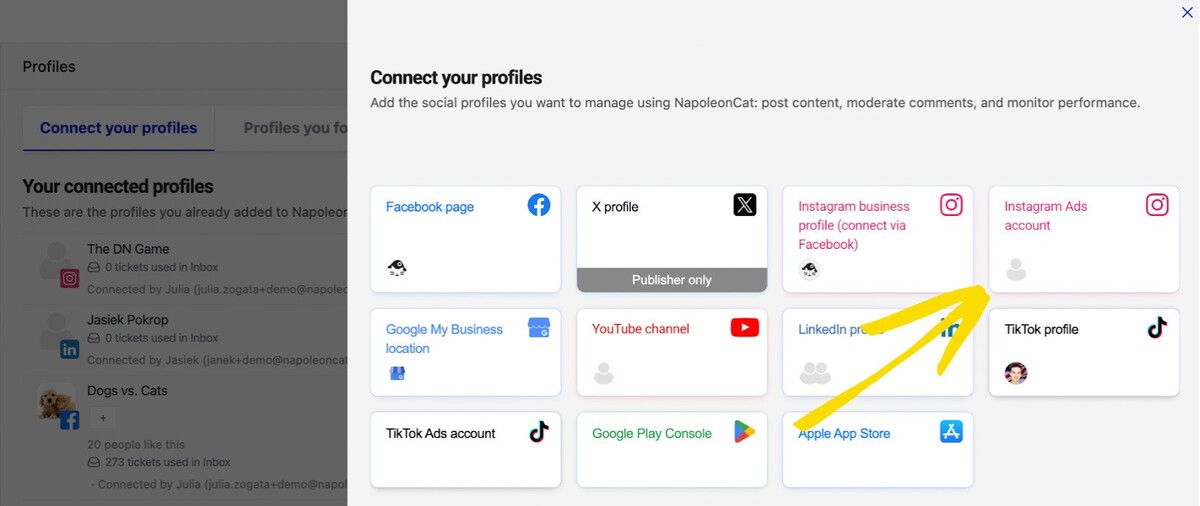
- Step 1: Connect your Instagram account and ad accounts. In NapoleonCat, go to Workspace settings and connect your Instagram Ads account(s) (separate from your Instagram accounts).
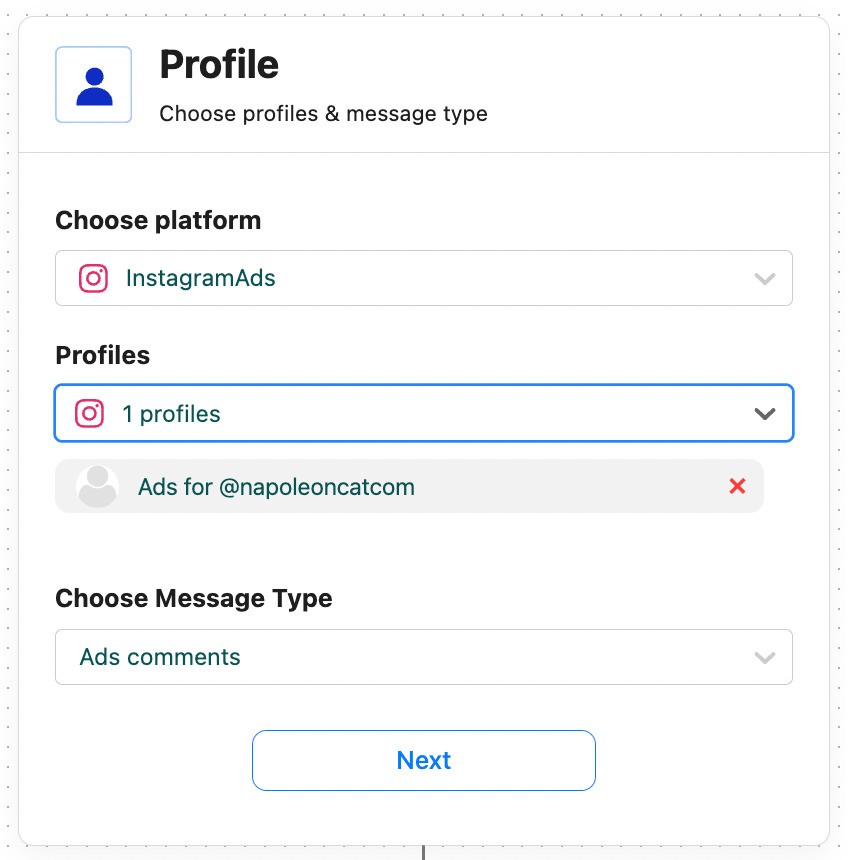
- Step 2: Open Auto-moderation and create a new rule. Select Instagram ads and then your account, and the type of comments you want to target.
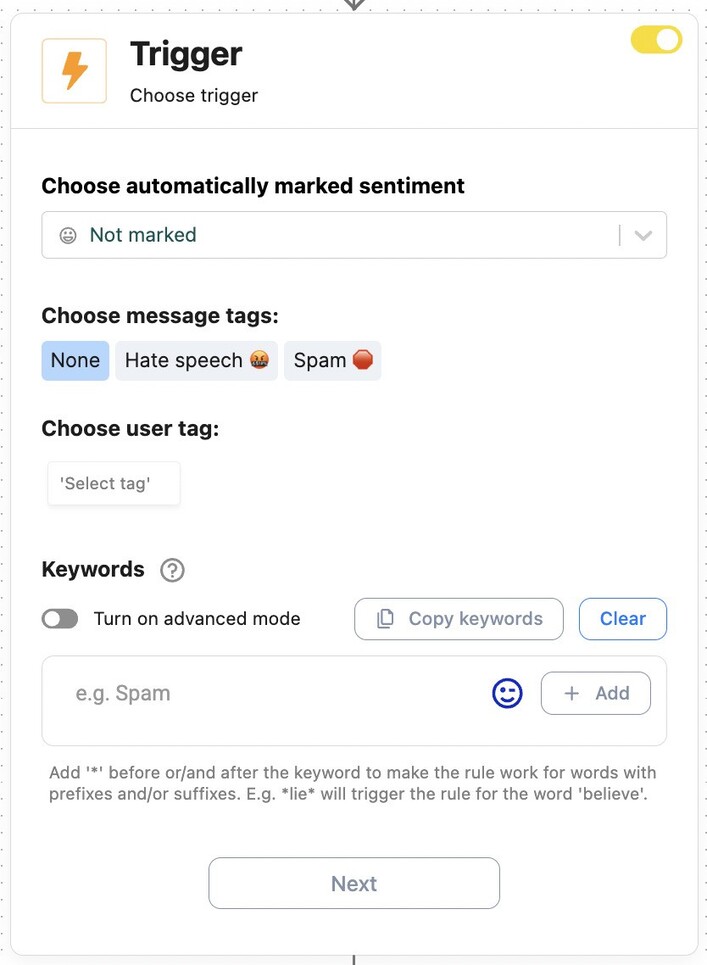
- Step 3: Set up the triggers. If you want to eliminate all comments on your Instagram ads, you just leave this box empty. If you just want to target spam, for example, add relevant keywords and/or the AI spam tag (more on that later).
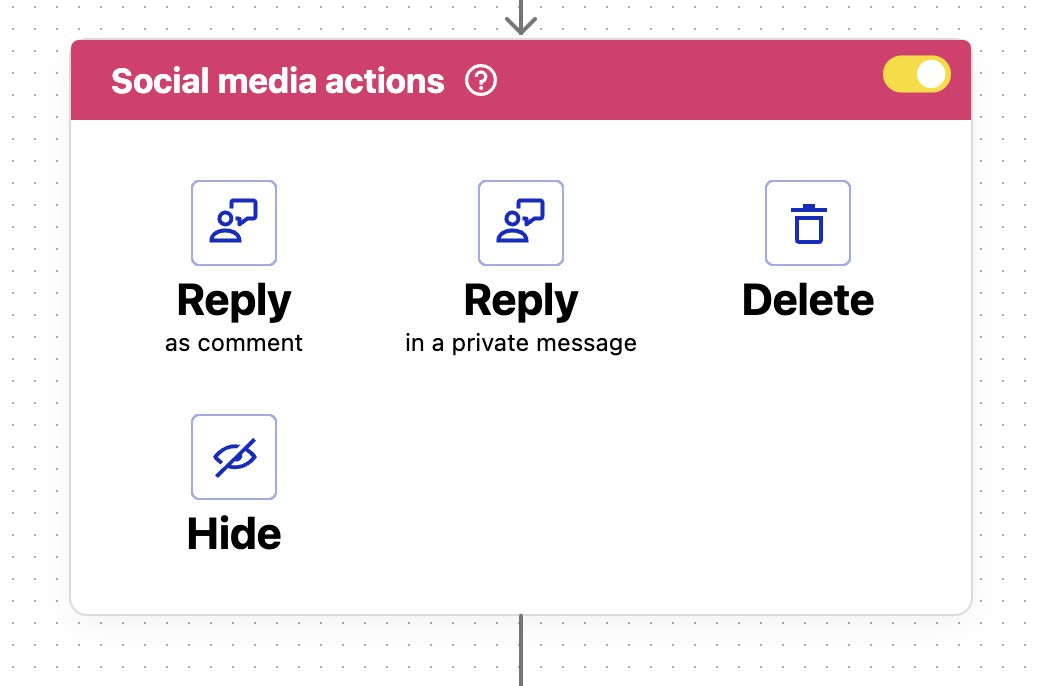
- Step 4: Choose your action – If you want to completely disable comments on your ads, set the rule to hide or delete the comment, depending on your preferences. You can also combine multiple actions, like hiding the comment and tagging it or assigning it to a team member.
- Step 5: Decide if the rule should work for a specific duration of time, in specific hours, or 24/7.
Once the rule is active, every comment posted under your Instagram ads disappears the moment it’s added. For users, it’s as if commenting isn’t allowed.
Automatically delete Instagram ad comments
Automatically remove spam and hate comments on your posts and ads, or disable all ad comments — powered by advanced AI moderation.
Using AI Assistant to identify spam, hate speech, and sentiment
NapoleonCat’s AI Assistant analyzes each comment’s content and tone, then automatically classifies and tags it. And these tags can also trigger Auto-moderation rules.
AI Assistant can identify:
- Spam
- Hate speech and abusive language
- Toxic or aggressive comments
- Scams and phishing attempts
- Promotional or bot-like messages
- Positive, neutral, and negative sentiment
And because it understands context, it’s far more accurate than plain keyword filtering.
To get the AI Assistant to do all that, turn it on for your Instagram Ads accounts in the Social Inbox.
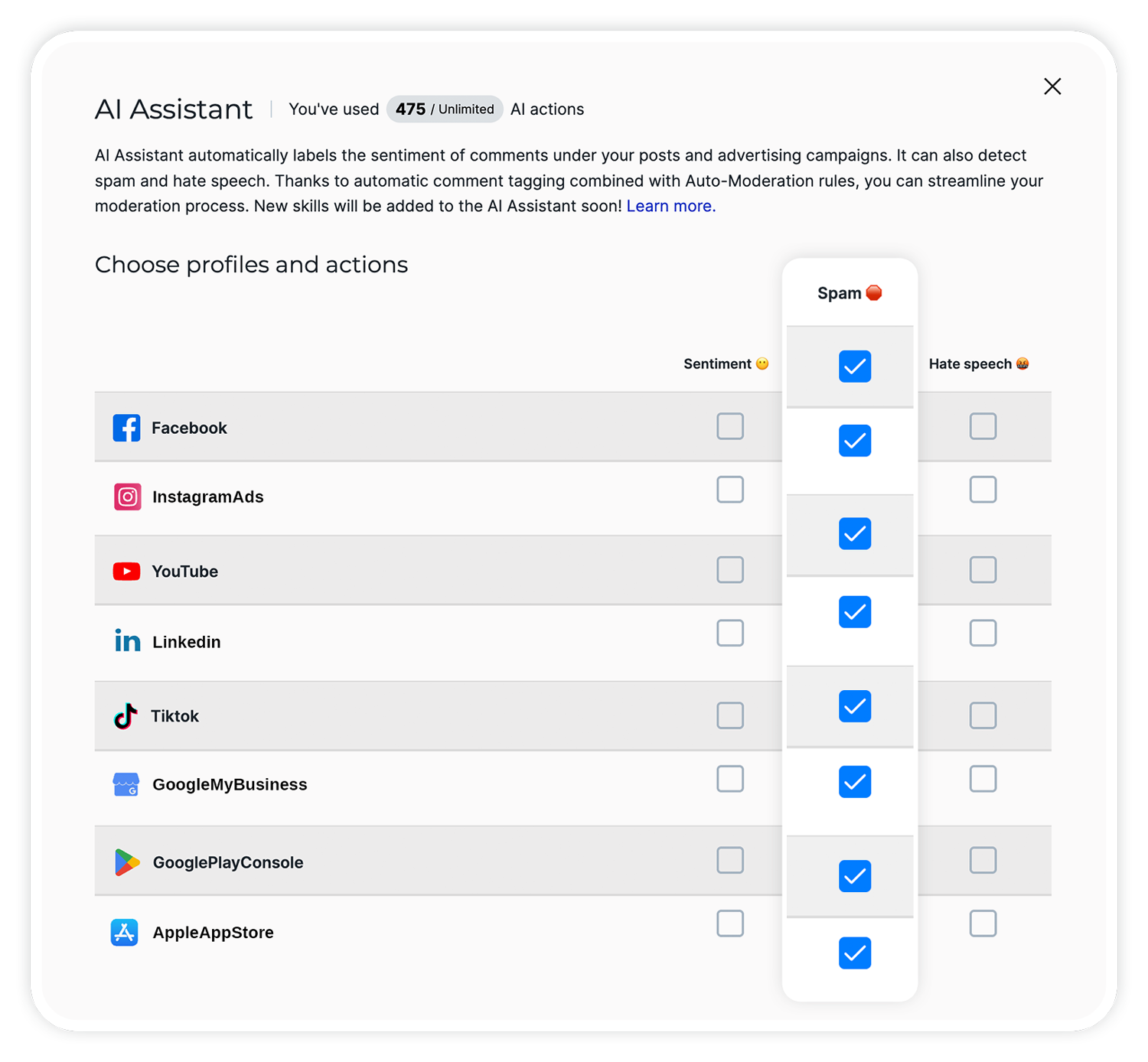
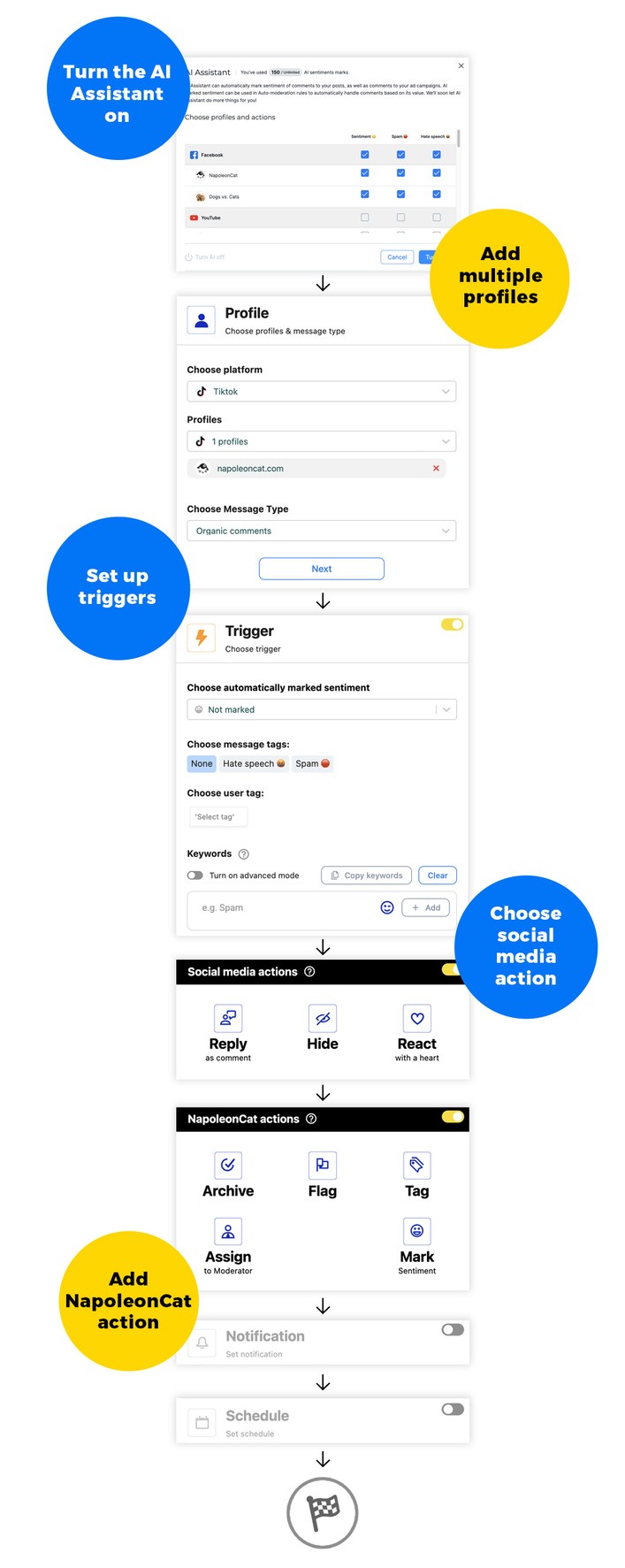
And then, set up Auto-moderation rules using the automated input from the AI Assistant.
Automating actions based on AI-detected comment types
Once the AI Assistant detects the type of comment, you can automate the next step. Set the AI tags (spam, hate speech, sentiment) in the trigger section of your Auto-moderation rule.
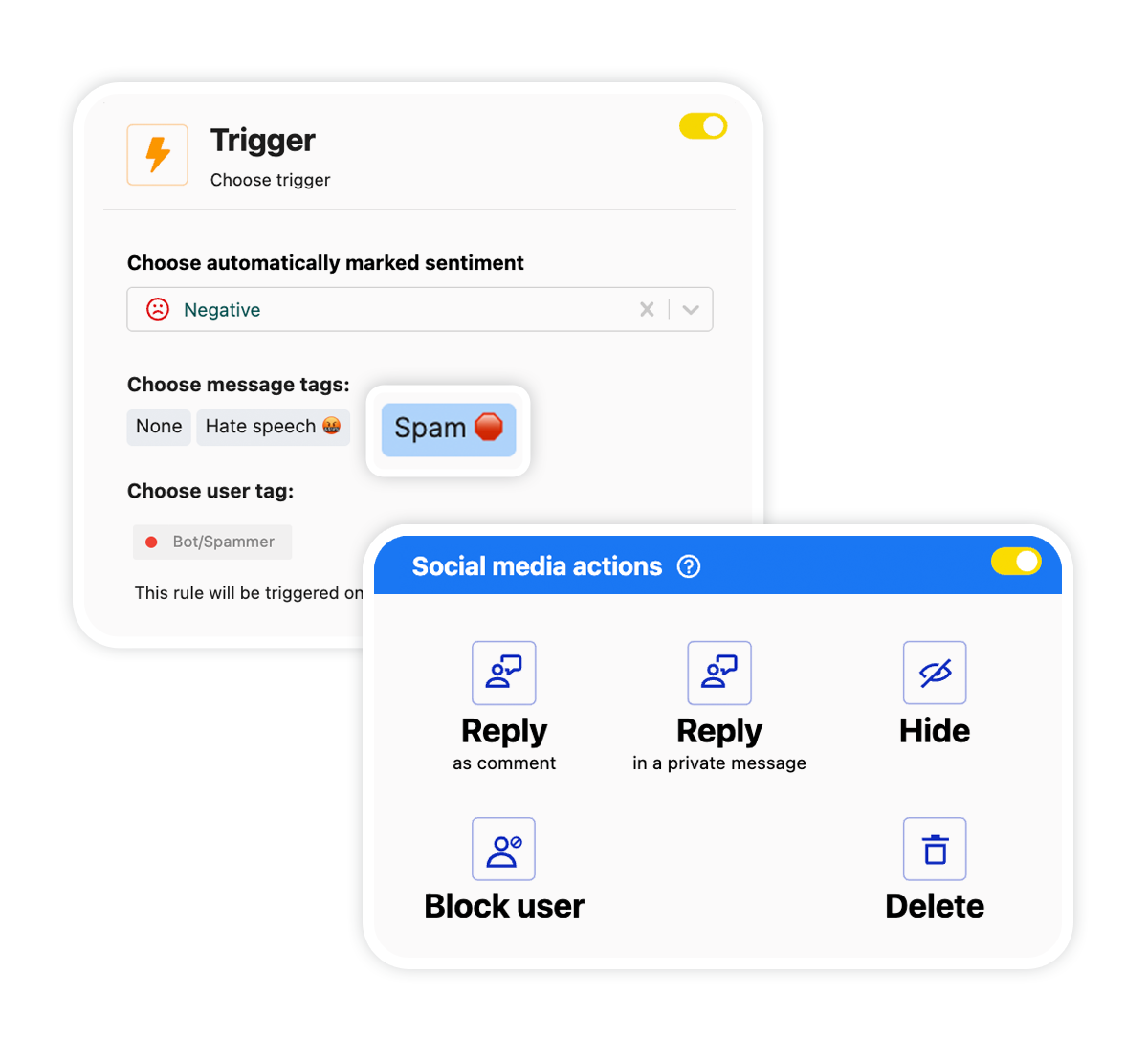
Then set up the desired action, and you can have the AI Assistant trigger it, for example:
- Spam detected → Hide comment
- Hate speech → Delete comment
- Negative sentiment → Assign to a moderator
- Sensitive comment → Reply in a private message (Yes, Auto-moderation can do that on Instagram, too)
And if you want to disable comments entirely on ads? Create a rule that hides any comment, no matter the tag, keyword, or sentiment.
More ways NapoleonCat’s Auto-moderation improves Instagram ad management
Disabling comments is useful in many scenarios, but most brands want more nuanced control when they manage Instagram ad comments. And Auto-moderation has several features that make ad management smoother and more strategic.
- Use automated replies for FAQs. If customers keep asking the same questions, for example, “Do you ship to XYZ?”, you can set up an auto-reply with the exact answer.
- Assign complex comments to the right teammate. Sometimes you just need a human. And Auto-moderation helps you triage efficiently, so humans only deal with comments that actually need their attention.
- Reply privately with sensitive info. If a customer asks about their order, you can automatically send them a DM with contact details (and a public comment telling them to check their inbox, too).
- You can use that feature to encourage engagement, too – ask people to comment a word or phrase, and automatically send a DM with additional info or a bonus link.
- Manage comments on Instagram and Facebook ads together – in one tool and one dashboard (with separate Auto-moderation rules to cater for the nuances).
- Customize your rules for a really sophisticated Instagram ad comment automation.
Best practices for managing engagement on Instagram ads
Whether you disable comments entirely or just filter out the noise, here are some practical tips to keep your ads healthy and brand-safe.
- Don’t delete every negative comment. Some feedback is valid, so use it as insight. The key will be to determine which comments are valuable feedback, and Auto-moderation can help with that.
- When in doubt, hide instead of delete – and flag a comment for review. Hidden comments are invisible to everyone except the commenter, which helps avoid escalation.
- Auto-respond to common product questions. This will show you’re responsive – while saving you tons of time.
- Assign tricky comments to moderators – automation doesn’t mean you’re excluding people from the process. You’re just helping bring the important/tricky stuff to the surface quicker.
- Monitor top-performing ads really closely. High visibility goes hand in hand with high spam and trolling volumes.
- Use AI for the messy stuff. It’s far more reliable for tone, intent, and identifying hate speech.
- Periodically review your Auto-moderation rules and adjust the settings if circumstances change (and they so often do on social media).
Automatically Block Spam with AI Precision
Automatically remove spam and hate comments on your posts and ads, or block users — all powered by advanced AI moderation.
When you should (and shouldn’t) disable comments on Instagram ads
If you’ve ever read anything I wrote about disabling comments on social media, you’ll know I’m not a fan of doing that in bulk, as a rule. And yet, I’m writing an article about how to disable comments on Instagram ads.
That’s because there certainly are situations where this is necessary, so let me make that distinction clear:
👍 Good reasons to disable comments:
- You’re running awareness campaigns and don’t want distracting or hateful comments
- You expect spam or trolling (e.g., competitors, controversial topics)
- You’re promoting a sensitive topic or message requiring tight control
- Your team doesn’t have the capacity to moderate ad comments manually
- You’ve had issues with impersonation scams before
- Your ads historically attract irrelevant or hostile comments
- You run ads in multiple markets with different languages (hard to moderate manually)
👎 When not to disable comments:
- You want to encourage organic engagement
- Your ads act as a customer support touchpoint
- You rely on social proof or user feedback
- You get mostly positive engagement – and want to keep it coming
- You want to gather insights from customer reactions (and that’s a very good practice!)
For most brands, the best solution is probably a hybrid: use Auto-moderation to remove the junk, but keep the valuable comments visible (and replied to).
Unless you’re running a campaign where comments simply work against you, then yes, hiding everything is a perfectly legitimate strategy. (There, I said it.)
Final thoughts
Let me guess: the reason you run Instagram ads is to get results, not a headache.
Meta’s native tools do the bare minimum, but they won’t give you the full control you need to keep your ads clean, safe, and free from spam. NapoleonCat’s Instagram management tools for business, on the other hand, fill that gap with flexible rules, instant moderation, and powerful AI that actually understands context.
So, if you’re here because you wanted to know how to disable comments on Instagram ads entirely, you now know you can do that in a few clicks.
And if you want better, smarter comment management without babysitting your ads 24/7, Auto-moderation has you covered there, too.
And you can try it completely for free to actually see the impact.
Automatically delete Instagram ad comments
Automatically remove spam and hate comments on your posts and ads, or disable all ad comments — powered by advanced AI moderation.
How to disable comments on Instagram ads – FAQs
Let’s answer some of the most common questions about disabling comments on Instagram ads.
Can you completely disable comments on Instagram ads?
Not natively. But with NapoleonCat, you can automatically hide or delete every new comment on your Instagram ads, effectively disabling commenting. (People will still be able to comment, but no comment will show up under the ad.)
What types of comments can NapoleonCat automatically hide on Instagram ads?
Spam, hate speech, scams, negative comments, bot messages, competitor promotions, offensive language, and anything else matching your custom rules.
Does AI moderation work on both organic posts and Instagram ads?
Yes. AI Assistant works across both organic content and ads on Instagram (and Facebook, too).
How accurate is AI Assistant at detecting spam and hate speech?
It’s significantly more accurate than keyword filtering because it interprets context, tone, and sentence meaning, and not just individual words. It can even detect sarcasm, and since it’s AI, it keeps getting better and better at it.
Will Auto-moderation remove positive or neutral comments by mistake?
Only if you set rules that apply to all comments. Otherwise, the AI Assistant can help protect positive engagement and keep it visible.
Can I customize which words or sentiment types trigger moderation actions?
Absolutely. You can create custom rules based on keywords, sentiment types, spam detection, and more.
Does disabling comments on Instagram ads affect ad performance?
In most cases, no. Comments don’t influence how algorithms serve your ads. If anything, hiding spam can help your ads look more trustworthy.
Can I manage Instagram and Facebook ad comments together in NapoleonCat?
Yes, all ad comments from both platforms appear in one unified Inbox.
How quickly does Auto-moderation react to new Instagram ad comments?
Within seconds. Comments are hidden or deleted almost instantly.
Automatically Block Spam with AI Precision
Automatically remove spam and hate comments on your posts and ads, or block users — all powered by advanced AI moderation.
You may also like:
- How to Stop Spam Comments on Instagram Ads – Expert Guide
- How to Automatically Block Instagram Spam Bots
- How to Block Spam DMs on Instagram – A Quick Guide
- How to Manage Comments on Instagram Ads
- How to Set Up an Instagram Auto-Reply (for DMs, IG Ads & more)
- How to Turn Off Comments on Instagram (for all posts at once)
- How to Stop Spam Comments on Instagram Ads – Expert Guide
- How to Stop Spam Comments on Instagram (for good)
- How to Set Up a Smart Auto-Reply in Instagram Comments
- The Best Instagram Ad Comments Automation Tool
- Instagram Auto-Comments: When and How Should You Use Them?