Table of Contents
- Why manage comments under your Facebook ads
- How to see your Facebook ad comments
- How to manage comments on Facebook ads
- How to automatically manage comments on Facebook ads
- How to automatically moderate spam comments on your Facebook ads
- Product Update: Stop spam on Facebook with AI precision
- Don’t skip your Facebook ad comment moderation
- Facebook ad comment moderation - FAQs
Remember that one Facebook ad comment you missed because your Facebook ads moderation wasn’t fast enough—and it snowballed into a PR crisis? Or the many sales opportunities you didn’t see in time because no one was tracking your ad comments? Here’s how to fix that and make moderation easy, without overburdening your team.
- Why manage comments under your Facebook ads
- How to see your Facebook ad comments
- How to manage comments on Facebook ads
- How to automatically manage comments on Facebook ads
- How to automatically moderate spam comments on your Facebook ads
- Product Update: Stop spam on Facebook with AI precision
- Don’t skip your Facebook ad comment moderation
- Facebook ad comment moderation – FAQs
The best Facebook ads moderation tool
Manage and automate ad comments from Facebook, Instagram, and TikTok. Auto-delete spam and toxic comments on your ads, powered by advanced AI.
Why manage comments under your Facebook ads
I feel like I’ve been talking about this forever – but this really is something that needs to be talked about. So I guess I’ll just keep going.
With how brands have taken over social media (I mean, let’s be honest here), there’s a temptation to make it another one-way advertising channel.
But you can’t remove “social” from “social media”. And the “social” is all about conversations. And those happen (mostly) in the comment section.
This also includes social media ads.
Facebook, among other social media platforms, is a key channel for customers to reach out to companies.
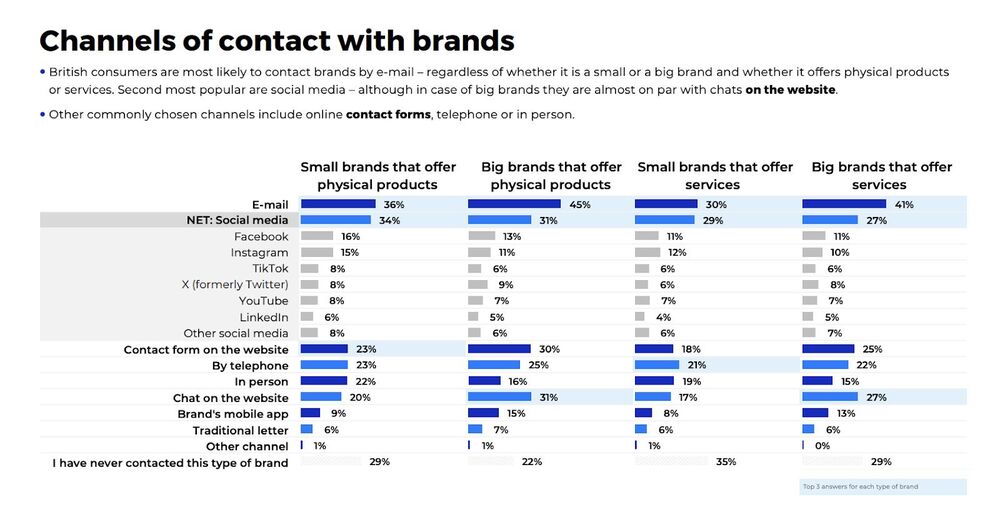
In fact, the latest study by NapoleonCat and Norstat carried out in the UK shows it clearly:
- Social media is one of the favorite ways to contact brands, second only to email.
- And Facebook is still the top platform to do it.
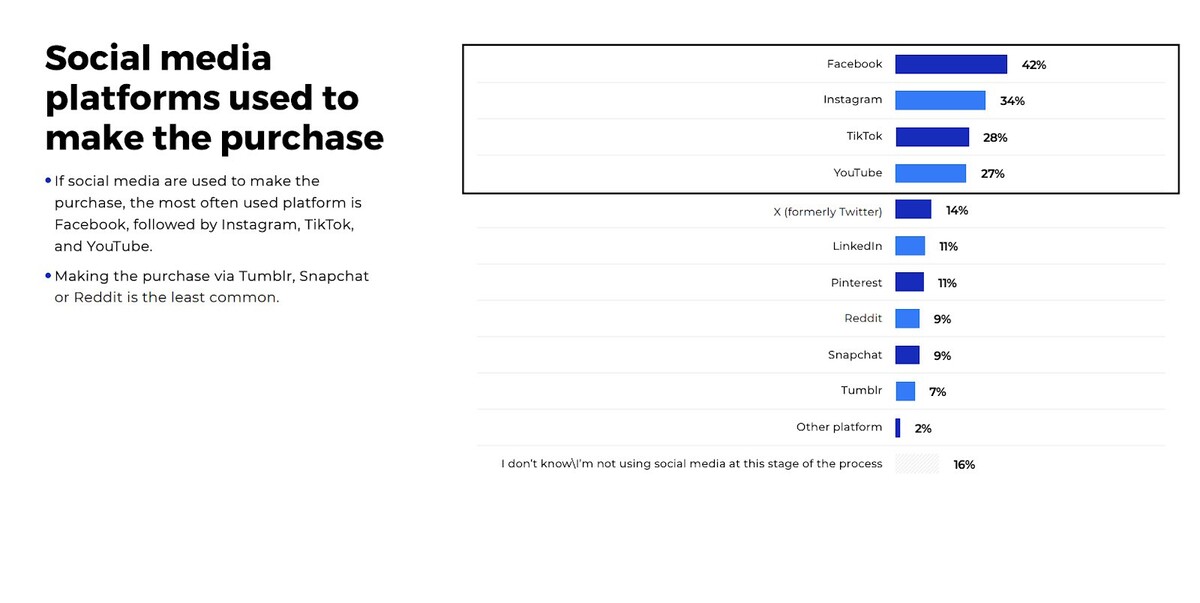
Consumers use Facebook across the entire customer journey – from evaluating products and checking out reviews to actually buying stuff to leaving their own reviews and user-generated content. So the other potential customers can be influenced and start their own buying journeys.
And ads play an important role in this, too. It’s how people learn about your products. And it’s often how they buy, with Facebook being the most popular social media platform where people actually buy straight from ads.
In fact, in the study, people who most often used Facebook to contact brands were also the most likely to buy from Facebook ads.
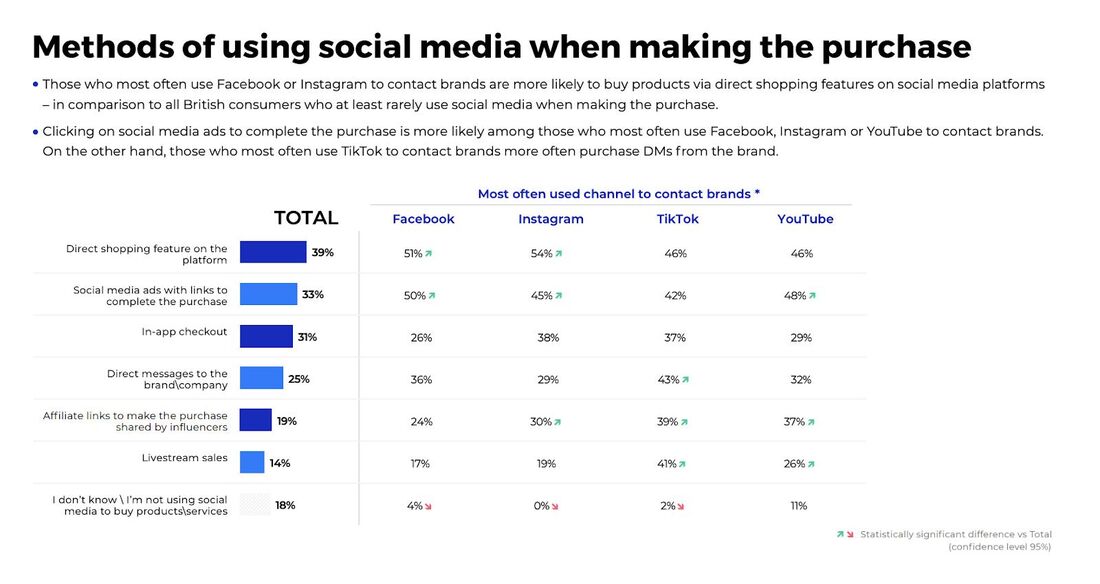
For more insights on how consumers use social media across their customer journey, download the report here.
And let’s talk about Facebook ad comment moderation. Clearly, it’s important, as comments can actually impact your Facebook ad campaign performance:
- Unanswered negative comments under ads become part of your ad and can discourage people from buying.
- Spam links can help others piggyback off your advertising budget.
- And unanswered questions about the advertised product might turn out to be missed sales opportunities.
Here’s how to avoid all of the above.
How to see your Facebook ad comments
Keeping track of your Facebook ad comments might be a little bit problematic. Especially if you’re running multiple ad campaigns at the same time, and even more so if you’re outsourcing campaign management to an external agency or freelancer who is not involved in regular comment moderation. This usually creates a disconnect, in which Facebook ad comments often get entirely forgotten.
Now, there are several ways you can see your Facebook ad comments and make sure you don’t lose them from sight.
1. Check comments directly on the ad.
If you’ve recently seen your ad on your feed, you can click on it and scroll down to view the comments. Since Facebook ads appear in different placements (feed, Stories, Reels, etc.), this method isn’t always reliable.
And obviously, it’s not the way to manage comments if you have multiple ads running (or, honestly, even if you have just one.)
2. Use Facebook’s Ad Manager.
In Facebook Ad Manager, find the campaign and click on the ad you want to check. Then, under “Ad Preview,” click the “View on Facebook” option.
The ad will open in its active format. Scroll down to see and interact with comments.
Again, this requires checking your ads manually, one by one.
3. Use Meta Business Suite. Click on Inbox in the left sidebar, select Facebook, and navigate to the “Ads” section to see comments specifically on your paid ads. The Inbox will display comments from all your ads, so we’re getting closer to being efficient here.
4. Use a third-party comment moderation tool like NapoleonCat’s Social Inbox. I’ll expand on this in the next section, but you can use the Inbox to:
- See all comments in one customizable dashboard, along with your organic content
- Filter out spam and prioritize urgent inquiries
- Set up automatic responses for frequently asked questions
5. Search for ad comments manually (if needed). If you can’t find an ad in your feed, you can:
- Go to your Facebook Page.
- Click on “Ad Center” in the left menu.
- Select “Ads You’re Running” to find active campaigns.
- Click on an ad to view engagement, including comments.
How to manage comments on Facebook ads
Seeing is one thing, but managing is another. So, let’s take a look at managing Facebook ads in the most efficient way of the ones I mentioned above – using NapoleonCat’s Social Inbox.
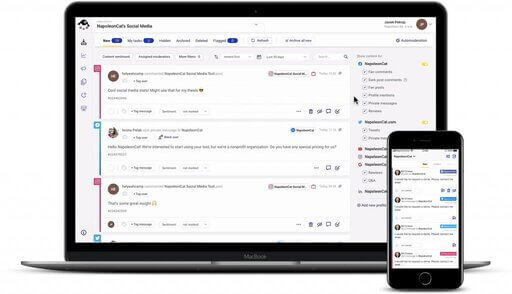
In the Social Inbox, you can manage Facebook comments next to comments and messages from other social media platforms:
- Instagram (+ads)
- Messenger
- TikTok (+ads)
- LinkedIn (personal & company pages)
- YouTube
- Google Business (reviews)
Which is exactly what makes it so efficient, as you don’t have to switch between platforms to tend to the different social media profiles.
This means you’ll see your ad comments next to conversations on organic posts and posts from different platforms, all in one dashboard. From there, you can resolve them one by one, and assign them to your team members. This way, making sure no comment is missed gets a lot easier.
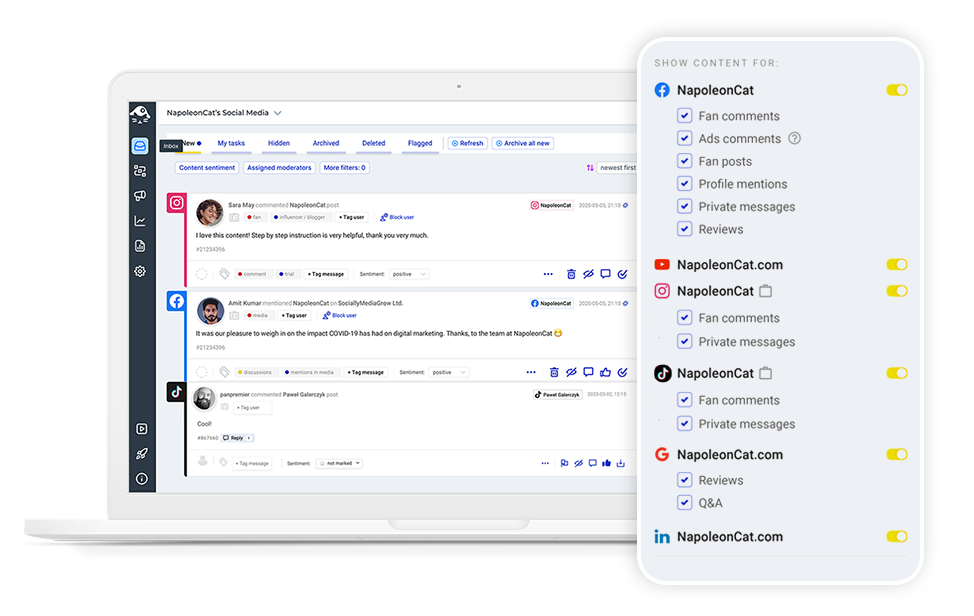
The Social Inbox lets you:
- Reply to your Facebook ad comments. If the conversation goes on, it will still be a thread in the Inbox, making it easy to track conversation history.
- Like the comments, hide or delete them.
- Categorize the sentiment of the comments – positive, neutral, or negative – manually, or let our AI assistant do it automatically for you.
- Assign them to someone on your team to manage. You can also leave a note for them, tag the comment, or flag it.
- And if answering a comment requires extra knowledge, you can send it for consultation, for example, with a client, straight from the Inbox. Without having to move to email or messaging apps. And your client will have insight into the whole conversation, making it easier to communicate the issue and resolve it quickly.
- You can also automatically translate comments and replies if you have an international audience.
Additionally, you can create different workspaces for different clients to make it even more transparent. You can also have access to the Facebook ad comments even if someone else is managing the campaigns overall.
This is the most comprehensive way to manage your Facebook ad comments, especially if you manage multiple social media profiles for different clients who continuously run many Facebook ad campaigns. The Social Inbox helps you organize it all neatly and smoothly and add Facebook ads to your moderation and customer service workflows.
The best Facebook ads moderation tool
Manage and automate ad comments from Facebook, Instagram, and TikTok. Auto-delete spam and toxic comments on your ads, powered by advanced AI.
How to automatically manage comments on Facebook ads
In some cases, for example, in busier sales seasons, when there are more Facebook ad campaigns running, and the volume of comments is higher than usual, consider automating some of your replies.
This is actually pretty easy using NapoleonCat’s Auto-moderation. If you complement Facebook ad comment moderation in the Inbox with automated scenarios for certain situations, you can build really efficient comment moderation workflows.
And what are those “certain situations”? For example:
- Busy sales seasons, sales campaigns, etc.
- Holidays and days off, when there’s nobody to respond.
- Crisis situations when there’s an influx of new comments or spam.
- Frequently asked questions about easy-to-answer things like prices or shipping.
In each of those cases, you can have relevant responses ready that will get triggered by selected criteria, for example, a specific keyword or type of comment (e.g., comments containing links).
Here’s how to set up an Auto-moderation rule:
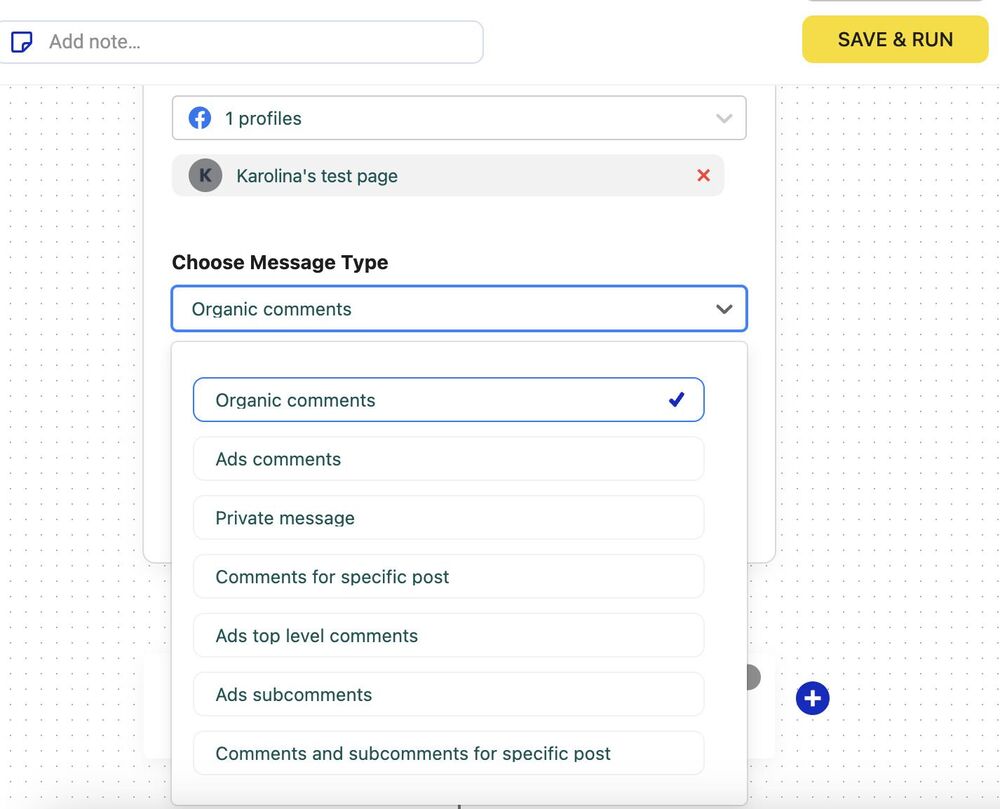
- Select your Facebook Page and select ad comments or even comments to a specific ad (you can have different Auto-moderation rules for different ads.)
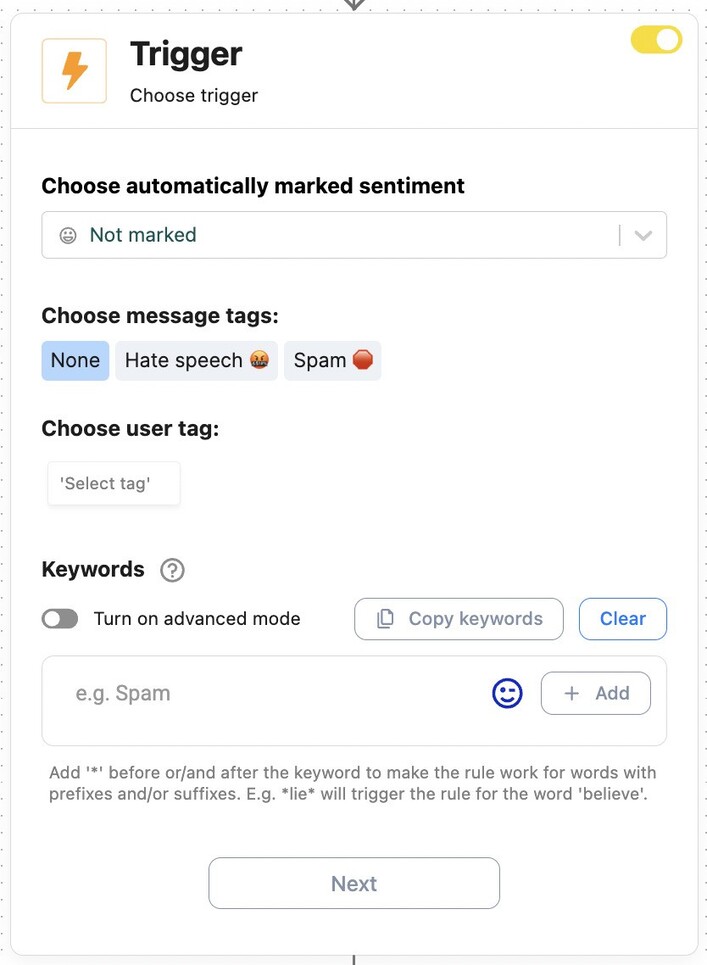
- Then specify the trigger: add relevant keywords, select a tag and/or comment sentiment. Make your keywords specific so that there’s no way a response can get triggered mistakenly.
- Then, choose what Auto-moderation does. If you want to trigger automated responses, select “Reply” and then write your response. I recommend writing multiple variations of your response that the system will then randomly rotate. This way, people won’t keep seeing the same response under your Facebook ads all the time.
- You can also reply in a private message, which is a great solution when there’s sensitive information involved, e.g., order numbers or personal details.
- You can also hide comments or delete them if they’re inappropriate – which is great for managing spam (I’m expanding on this in the next section.)
- If you want, you can auto-delete or auto-hide all incoming comments on your Facebook ads.
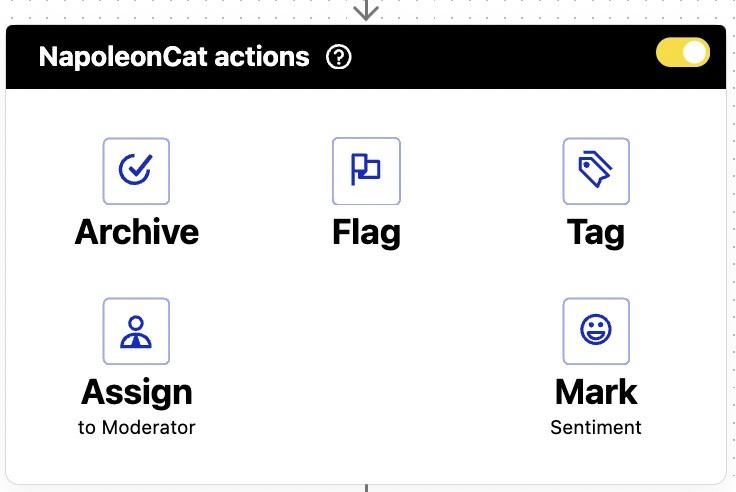
- When creating your Auto-moderation rule for Facebook ads, you can also add actions in NapoleonCat, for example, assign a comment to a selected moderator or add a tag.
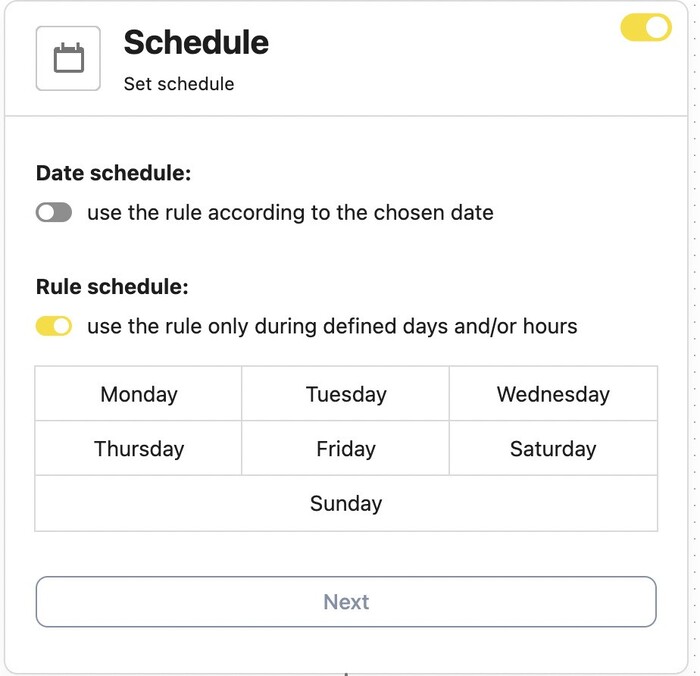
- You can also set up the schedule for your automated responses, for example, just during the weekends when nobody’s there to monitor the comments.
How to automatically moderate spam comments on your Facebook ads
Using Auto-moderation is probably the most effective way to get rid of spam comments under your Facebook ads without wasting your moderators’ time.
Set up an Auto-moderation rule for your Facebook ads that gets triggered by words commonly appearing in spam comments or even all comments with links, and those will instantly get removed or hidden from view.
To make this even easier, you can customize one of the ready-made Auto-moderation templates. There’s one specifically tailored to Facebook.
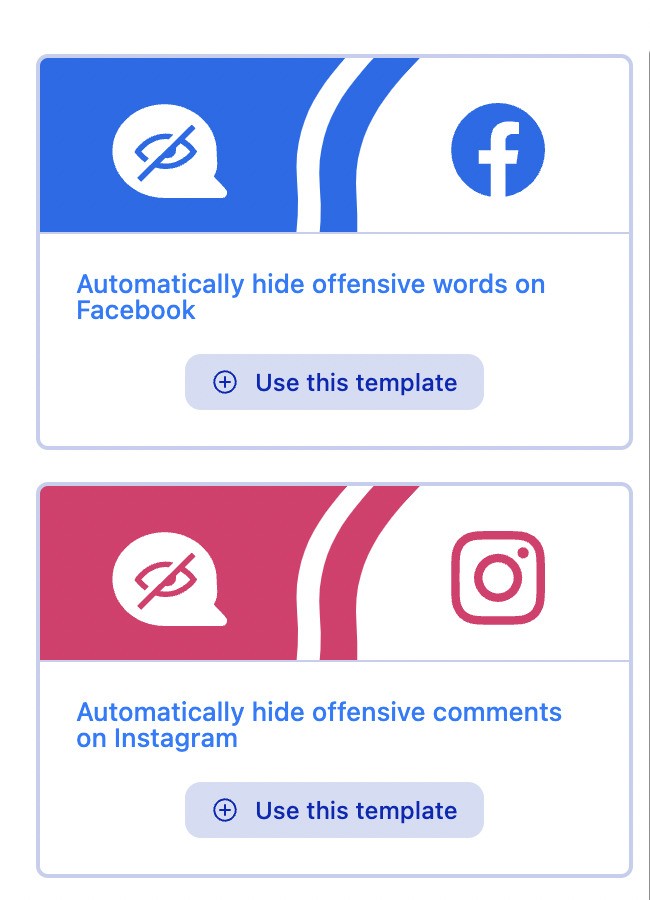
The templates already include the most common spam and offensive words, so you can use them as your starting point, add your own keywords and phrases, and choose whether you want to hide them or delete the comments in question.
When you set up your Auto-moderation rule, you can also select a condition for the comments to contain links – this way, you’ll remove all comments with links from your ads instantly.
And, I mean, if anyone’s posting comments with links under your ads, it’s most likely spam.
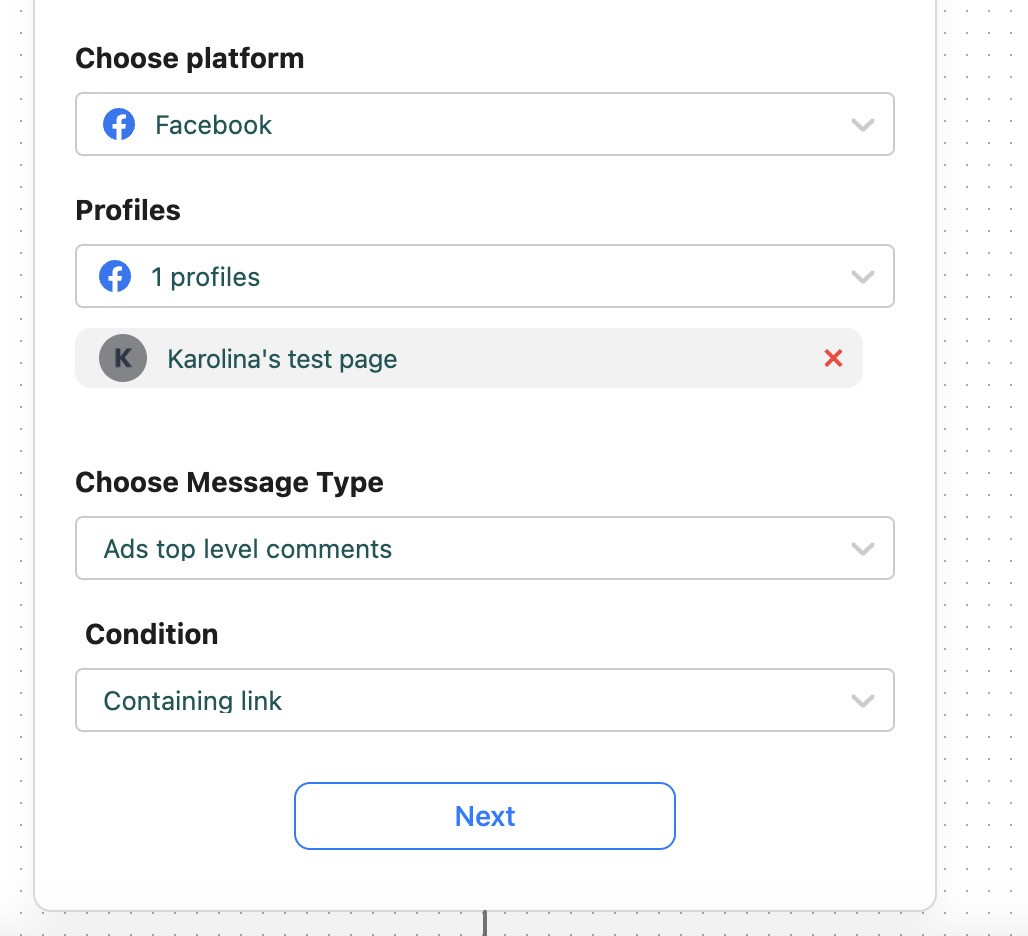
I recommend running this type of Auto-moderation rule 24/7 so that your moderators don’t need to bother with manual spam removal. They have more important things to do.
To have your rule run 24/7, simply skip the schedule step. You can have this one running in the background at all times.
We also made a short video tutorial on how to set up this ‘anti-spam’ shield for your comment sections 😉
Product Update: Stop spam on Facebook with AI precision
Stopping spam and trolls on your social posts just got much easier, quicker, and more effective. You no longer need to define keywords while creating your Auto-moderation rules.
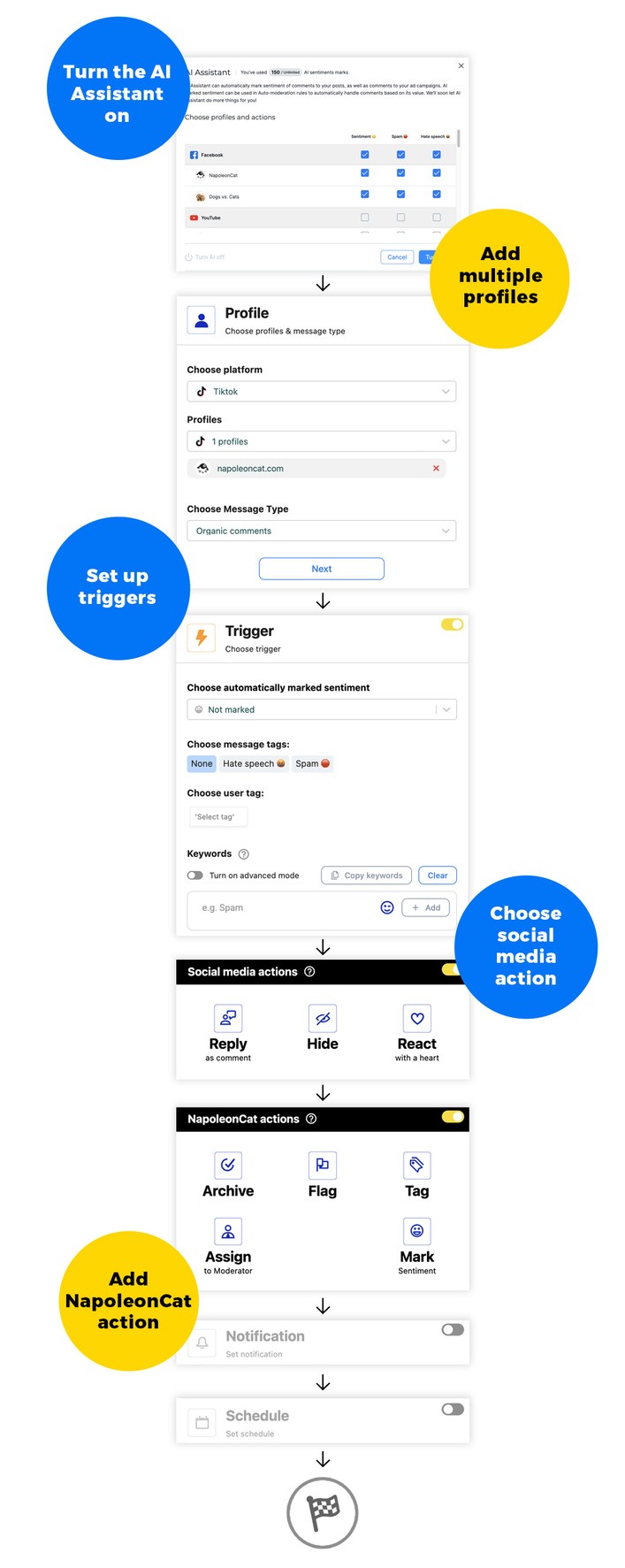
With our ever-evolving AI Assistant, you can use advanced AI to detect and remove spam and hate speech from your posts across Facebook, Instagram, TikTok, YouTube, and LinkedIn. This also includes ads on Facebook, Instagram, and TikTok.
All you have to do is turn on the AI Assistant in our Social Inbox, and then set up the right triggers while creating your rule:
What’s more, our AI assistant also detects spam and hate speech even in your private messages on Facebook and Instagram.
Thanks to its integration with Auto-moderation, you can finally say goodbye to suspicious messages and chaos in your DMs. From now on, your conversations stay clean and organized.
Already using spam and hate speech detection? Check your DMs—our AI assistant is already at work! 🤓
We highly recommend you test NapoleonCat completely for free – no credit card required 😉

Automatically Block Spam with AI Precision
Automatically remove spam and hate comments on your posts, ads, and private messages – or block users, all powered by advanced AI moderation.
Don’t skip your Facebook ad comment moderation
(Something tells me it’s not the last time I’m saying this.)
Managing Facebook ad comments isn’t just about keeping your ads looking clean. (Though, that’s also a benefit, right?)
It’s about improving their effectiveness and protecting your brand. Every unanswered question is a missed sales opportunity. Every unaddressed complaint can snowball into a PR issue. And every spam comment? That’s just giving free exposure to scammers on your ad budget. (Ever thought of that? 🤔)
With social media playing such a crucial role in the customer journey, you need to treat Facebook ad comment moderation as an essential part of your marketing strategy. Ignoring it means leaving potential customers hanging, allowing negativity to influence buying decisions, and ultimately diminishing the ROI of your ad spend.
Whether it’s using built-in tools like Meta Business Suite, third-party social media moderation platforms like NapoleonCat’s Social Inbox, or setting up Auto-moderation to filter out spam and automate responses, you have ways to make it more than manageable.
So, there really is no excuse.
Because the brands that win on social media? They’re the ones that actually show up.
The best Facebook ads moderation tool
Manage and automate ad comments from Facebook, Instagram, and TikTok. Auto-delete spam and toxic comments on your ads, powered by advanced AI.
Facebook ad comment moderation – FAQs
Here are some answers to the most common questions regarding Facebook ads moderation.
What is Facebook ads moderation?
Facebook ads moderation is the process of monitoring, managing, and responding to comments under paid Facebook ads to protect brand reputation, stop spam and abuse, and turn engagement into conversions.
Why is Facebook ads moderation important for ad performance?
Unmoderated comments can damage trust, distract potential customers, and lower conversion rates. Effective Facebook ads moderation keeps discussions relevant, answers buyer questions fast, and supports better ad ROI.
How can I manage all Facebook ad comments in one place?
With NapoleonCat’s Social Inbox, you can manage all Facebook ad comments from multiple campaigns and pages in one dashboard, making Facebook ads moderation faster and more scalable.
Can Facebook ads moderation be automated?
Yes. NapoleonCat’s Auto-moderation lets you automate Facebook ads moderation by hiding spam, blocking offensive content, and replying to common questions without manual effort.
How does automated Facebook ads moderation work?
You set rules based on keywords, sentiment, or comment type. NapoleonCat then automatically takes action—replying, hiding, deleting, or assigning comments—so Facebook ads moderation runs in the background.
Can AI improve Facebook ads moderation?
Absolutely. NapoleonCat’s AI Assistant helps identify spam, hate speech, and low-quality comments even when keywords aren’t obvious, making Facebook ad moderation more accurate and efficient.
What should I do with negative comments on Facebook ads?
Negative comments should be handled quickly and strategically. With NapoleonCat, you can reply publicly, assign comments to your team, or automate responses as part of your Facebook ads moderation strategy.
Does Facebook ads moderation work outside business hours?
Yes. Automated Facebook ads moderation in NapoleonCat works 24/7, so spam and harmful comments are handled instantly—even when your team is offline.
Can I moderate Facebook ads along with other platforms?
Yes. NapoleonCat allows you to manage Facebook ads moderation alongside Instagram and TikTok ad comments from the same Social Inbox, saving time and keeping workflows consistent.
How do I get started with Facebook ads moderation in NapoleonCat?
Start with a free trial, connect your Facebook Page, and use Social Inbox and Auto-moderation to build a complete Facebook ads moderation system in minutes.
You may also like:
- Ad Comment Moderation Made Easy: A Guide
- How to Use Automated Customer Service on Social Media
- How to Automatically Block Spam Comments on TikTok Posts and Ads
- How to Manage TikTok Ads Comments – A Quick Guide
- How to Monitor Facebook Ads Comments From One View
- Your Guide to Facebook Auto-moderation
- The Complete Guide To Using Facebook Automated Responses
- How to Turn Off Comments on Facebook Ads
- Your Guide to Instagram Ads
- How to Manage Comments on Instagram Ads
- How to Set Up an Instagram Auto-Reply (for DMs, IG Ads & more)