Table of Contents
- What is a LinkedIn comments auto reply?
- Why you need smart auto replies for LinkedIn comments
- Beyond basic automation: What Auto-moderation can do
- How LinkedIn auto replies work with NapoleonCat
- Setting up LinkedIn comments auto replies (step-by-step)
- Handling spam, negative comments, and unwanted content automatically
- Randomizing replies to sound human (shuffle auto-replies)
- Combining auto-replies with other moderation actions
- Best practices for LinkedIn comments auto reply
- Measuring the ROI of LinkedIn comment automation
- Conclusion: Scale engagement with NapoleonCat’s Auto-moderation
- LinkedIn Comments Auto-Reply - FAQs
Brand reputation is important everywhere – but LinkedIn might be THE place where it’s non-negotiable. And part of protecting it is managing conversations in the comments, which can be overwhelming if you get a lot of them.
But fear not, there are tools to help. Let me show you how to use a LinkedIn comments auto reply tool to never worry about your LinkedIn comment section again.
- What is a LinkedIn comments auto reply?
- Why you need smart auto replies for LinkedIn comments
- Beyond basic automation: What Auto-moderation can do
- How LinkedIn auto replies work with NapoleonCat
- Setting up LinkedIn comments auto replies (step-by-step)
- Handling spam, negative comments, and unwanted content automatically
- Randomizing replies to sound human (shuffle auto-replies)
- Combining auto-replies with other moderation actions
- Best practices for LinkedIn comments auto reply
- Measuring the ROI of LinkedIn comment automation
- Conclusion: Scale engagement with NapoleonCat’s Auto-moderation
- LinkedIn Comments Auto-Reply – FAQs

LinkedIn Comments Auto-Reply
Set up smart auto-replies for your posts on LinkedIn (personal and company pages). Automatically delete spam and hate speech – with an all-in-one social media tool.
What is a LinkedIn comments auto reply?
LinkedIn comments auto reply is exactly what it sounds like: automatically responding to comments under your LinkedIn posts without having to manually type the same replies over and over again.
Instead of going on LinkedIn every few minutes to check whether someone commented (and you know you can’t rely on their email notifications), auto replies let you respond instantly based on predefined rules. Someone leaves a comment, and an automatic reply appears under your post.
This is especially useful for LinkedIn Pages that:
- Get a lot of engagement
- Run campaigns, ads, or lead magnets
- Post regularly and attract repeat questions
- Don’t have time to babysit comment sections
And no, this doesn’t mean replying blindly to everything with “Thanks for your comment!” Modern LinkedIn comments auto reply tools (like NapoleonCat’s Auto-moderation) let you decide when to reply, what to reply, and what to ignore completely. They also let you hide or delete unwanted comments and spam, which we’ll also talk about later in the article.
Why you need smart auto replies for LinkedIn comments
You wouldn’t ignore a customer at the counter, leaving them without a reply, would you? And what if you had tens (or maybe even hundreds) of people standing right there, asking questions, speaking over each other? Because that’s what social media might feel like.
Now, replying to LinkedIn comments is obviously important. But the bigger the volume, the more impossible it seems.
You want to:
- Respond quickly
- Look professional
- Keep conversations going
- Avoid ignoring people
But when comments start piling up, that’s really easier said than done.
A LinkedIn comments auto reply tool helps deal with all that. First, it keeps your response time low even outside working hours. Even if someone comments on your post in the evening or over the weekend, they’ll still get an instant reply.
Second, it keeps your communication consistent. Every reply follows your brand tone, without typos, rushed responses, or “oops, I missed that one.”
And third, it saves your team a lot of time. Auto replies handle the simple stuff, so you can focus on conversations that really need a human touch.
Beyond basic automation: What Auto-moderation can do
Basic automation replies to comments. Auto-moderation manages them for you in a more sophisticated way. Let me show you the difference.
With proper auto-moderation, a LinkedIn comments auto reply is just one piece of a much bigger system that helps you control what happens under your posts.
Auto-moderation can:
- Reply automatically to relevant comments
- Ignore comments that don’t need engagement
- Hide spam or promotional comments
- Flag negative or sensitive comments for review
- Assign comments to the right team member
- Tag comments for reporting or follow-up
This way, you can choose the way you respond so it fits the comment.
How LinkedIn auto replies work with NapoleonCat
NapoleonCat’s LinkedIn comments auto reply works through rule-based auto-moderation. Instead of replying to everything by default, you decide:
- Which comments should trigger a reply
- Which comments should be ignored
- Which comments should be hidden or assigned to a team member
And to put it in very simple steps:
- Someone comments on your LinkedIn post
- NapoleonCat checks that comment against your rules
- If it matches, the selected action happens automatically
That action might be posting a public reply, hiding the comment, or assigning it to a team member. (And more.)
You can base rules on things like keywords, user tags, sentiment, or AI-detected spam content – making LinkedIn comment automation predictable and really easy to manage.
LinkedIn Comments Auto-Reply
Set up smart auto-replies for your posts on LinkedIn (personal and company pages). Automatically delete spam and hate speech – with an all-in-one social media tool.
Setting up LinkedIn comments auto replies (step-by-step)
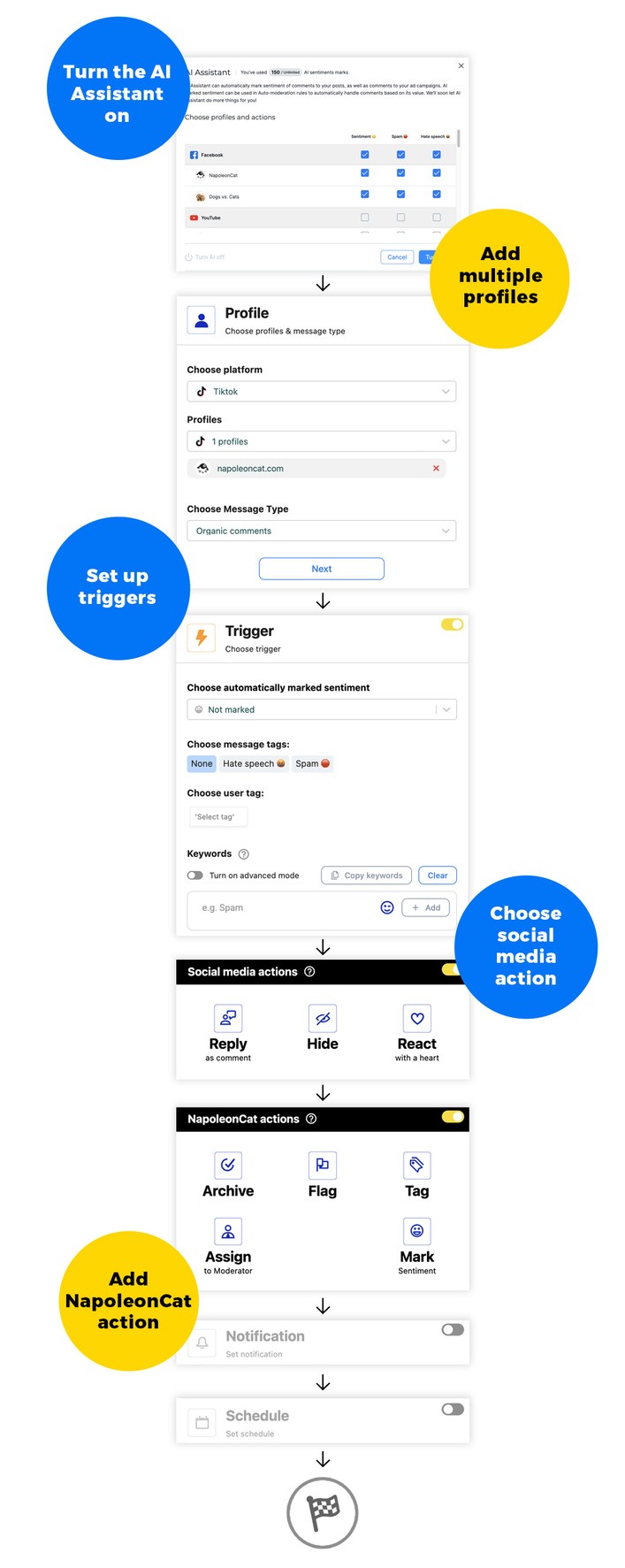
Setting up a LinkedIn comments auto reply in NapoleonCat doesn’t require technical skills or complicated configurations. Here’s what you’ll need to do:
- Connect your LinkedIn Page or personal profile in NapoleonCat.
- Go to the Auto-moderation section in the dashboard and create a new rule.
- Choose LinkedIn as the platform and select your profile or company page.
- Set the triggers for the rule, for example:
- Specific keywords the comments have to contain
- Automatically assigned AI tags (to do that, turn on the AI Assistant in the Social Inbox first)
- User tag (NapoleonCat lets you tag users, which becomes part of their Social CRM profile, invaluable for relevant, personalized communications)
- Sentiment (positive, negative, or neutral – assigned manually or by the AI Assistant)
- Or a combination of several triggers.
- Write your auto reply. Ideally, add several reply variants, so they can be randomly rotated.
- You can also select to hide the comment if it’s offensive or spam – more on that in the next section.
- Add extra actions in NapoleonCat, like tagging or flagging the comment and assigning it to a team member (for when an auto reply is not enough).
- Set the schedule for the rule – you can have it run 24/7, during specific hours, or for the duration of a campaign.
- Turn the rule on. If you want to be notified every time the rule is triggered, you can also set up email notifications.
Handling spam, negative comments, and unwanted content automatically
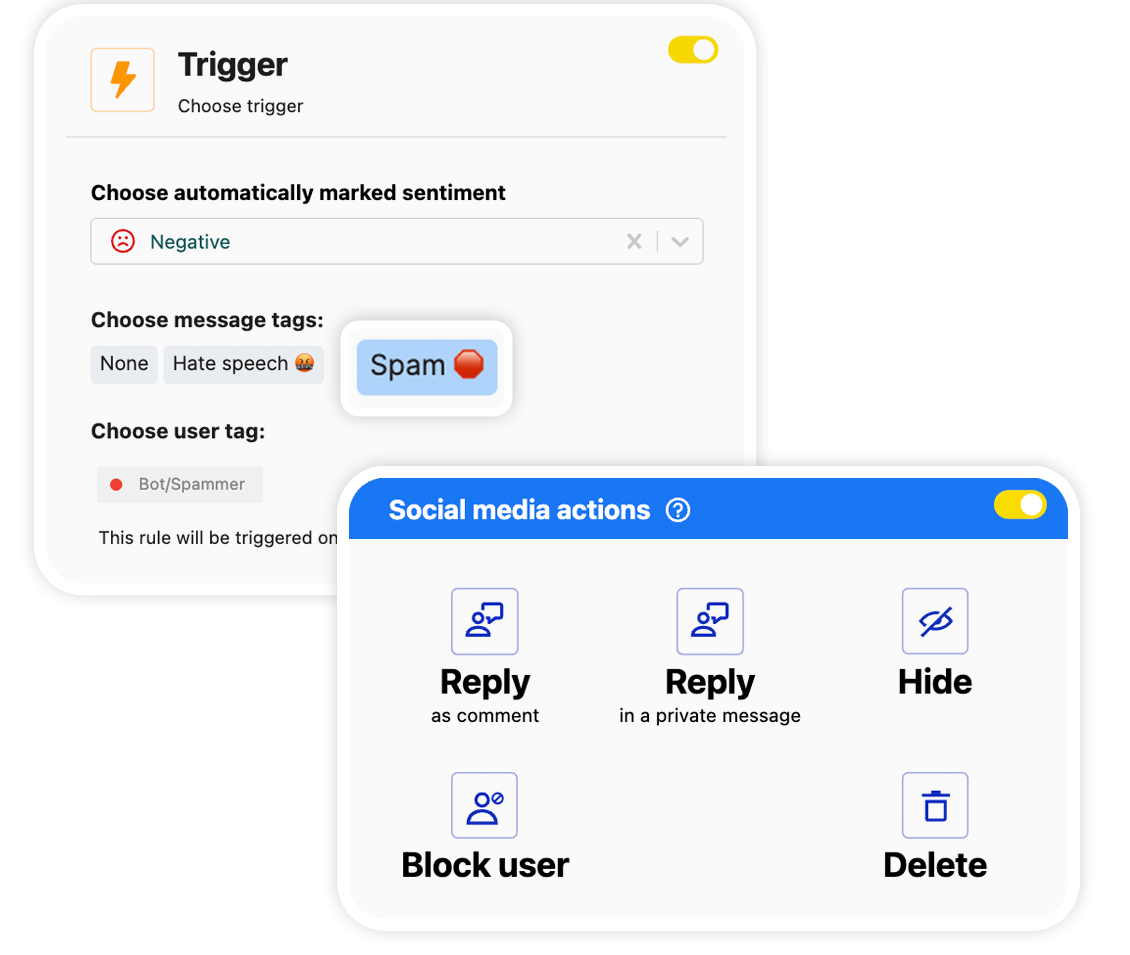
Not every LinkedIn comment deserves a reply. Some are spam, self-promotion, hate, etc. And that’s where Auto-moderation really beats simple auto reply tools.
With NapoleonCat, you can:
- Hide comments with suspicious links
- Filter out repetitive promotional messages
- Exclude spam from auto replies
- Forward negative comments to moderators instead of replying with a canned response
This way, you don’t accidentally thank a spam bot (yikes) or escalate a situation that should be handled privately.
Randomizing replies to sound human (shuffle auto-replies)
You don’t want your auto replies to sound robotic – but that’s something Auto-moderation can easily fix.
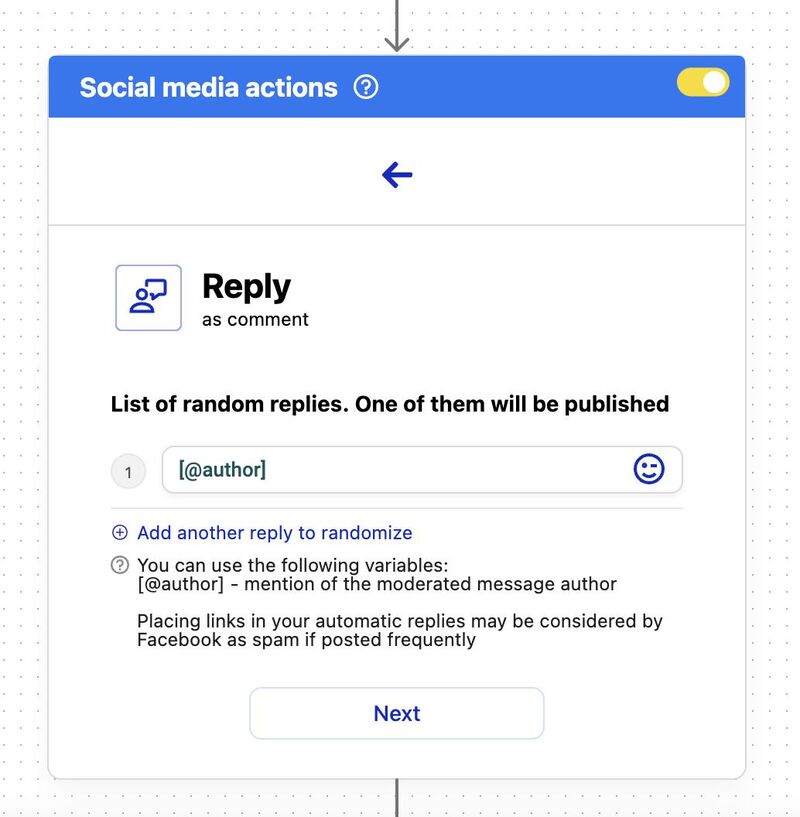
Instead of using one fixed response, you can add multiple reply variations in the Auto-moderation rule – all written in a friendly, human tone. NapoleonCat will randomly rotate them when replying to comments. And people on LinkedIn won’t see the same reply posted again and again in the email thread
For example, instead of replying with “Thanks for your comment!” every single time, you can rotate between:
- “Thanks for sharing your thoughts!”
- “Appreciate your comment!”
- “Thanks for joining the conversation!”
You get it. It might seem like a small feature, but it makes a big difference when it comes to authenticity. And in the age of overwhelming AI slop in LinkedIn comments, this can have an even bigger impact.
Combining auto-replies with other moderation actions
Auto replies are even more helpful when combined with other moderation actions.
For example, you can:
- Reply to a comment and assign it to a moderator
- Reply and tag the comment for reporting
- Reply and mark it as handled
This will turn your LinkedIn comment section into a workflow, with different types of comments getting different treatments, automatically. With customizable triggers and actions, NapoleonCat’s LinkedIn comments auto reply feature is a truly flexible tool.

Protect your LinkedIn from spam
Automatically delete spam comments on LinkedIn, for all your Company Pages and personal accounts at once – powered by advanced AI.
Best practices for LinkedIn comments auto reply
To get the most out of LinkedIn comments auto reply, keep a few tips in mind:
- Thoroughly review automation scenarios first – so that your auto replies are actually relevant. Match them to intent, not just keywords, to keep them as accurate as possible.
- Keep auto replies natural and conversational. Just because it’s automated doesn’t mean it can’t be human. Avoid anything that feels like a copy-paste script.
- Use shuffled replies to avoid repetition (and looking like AI slop). Even small wording changes will make your LinkedIn comments auto reply feel more human, and much less robotic.
- Regularly review and adjust your rules as user behavior changes on LinkedIn (e.g., these days, you might be auto replying to auto comments. Which is also why studying user behavior in the comments first is so important.) Make a habit of reviewing performance regularly, checking which replies get the most engagement, updating replies for new campaigns or offers, and adjusting filters if spam patterns change.
- Use automation to support your team, not replace human interaction altogether. Let it handle high-volume, low-effort engagement and spam removal – and leave relationship-building and nuanced questions to your human team.
Measuring the ROI of LinkedIn comment automation
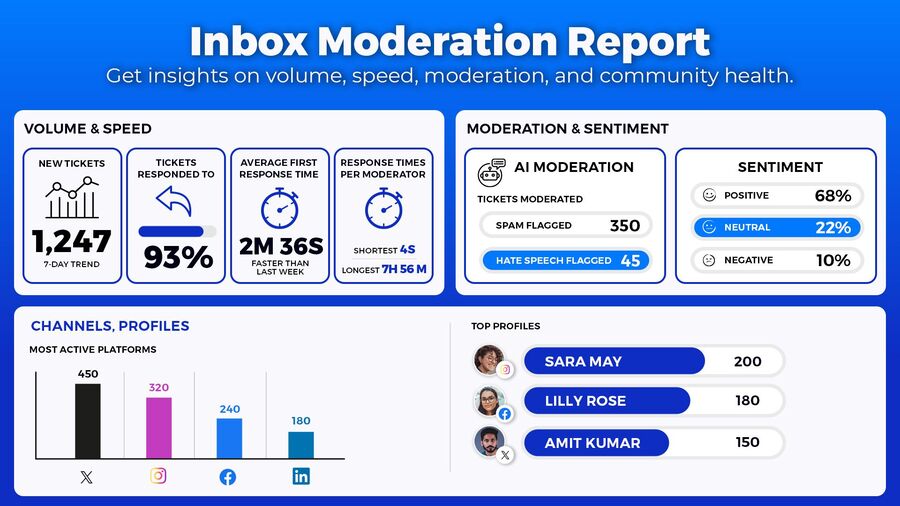
With NapoleonCat’s social media moderation reports, you can actually measure the improvement a LinkedIn comments auto reply tool will make to your moderation team performance.
Measure the volume of incoming comments and average response times – and use automation to reply faster without compromising accuracy.
The Inbox Activity reports in NapoleonCat include stats per profile and per moderator, as well as inbox tag statistics. Regularly reporting on your moderation activity will help you measure and improve your moderation overall. (Which is great for your brand and LinkedIn audience, but also for your moderation team, who can finally have more time for those nuanced conversations with customers.
Conclusion: Scale engagement with NapoleonCat’s Auto-moderation
LinkedIn comments auto reply helps you stay consistently responsive without adding more work. The real value, though, comes from smart auto-moderation.
All those people talking, maybe even yelling at the counter? You can reply to every one of them in a relevant way. (And even hide the ones who say offensive or spammy things from view so nobody else hears/sees their comments. I know that might be an awkward analogy, but I hope you get my point.)
So, if LinkedIn is an important channel for your brand, take NapoleonCat’s LinkedIn management tools for business for a spin (14 days for free) – and see how they work in practice.
LinkedIn Comments Auto-Reply
Set up smart auto-replies for your posts on LinkedIn (personal and company pages). Automatically delete spam and hate speech – with an all-in-one social media tool.
LinkedIn Comments Auto-Reply – FAQs
Let’s answer some of the most common questions regarding auto-replies on LinkedIn.
How to automate comment replies on LinkedIn?
You can automate LinkedIn comment replies using social media management tools like NapoleonCat that support LinkedIn auto-moderation.
Can you do an automatic reply on LinkedIn?
LinkedIn itself doesn’t really offer automation tools, and advanced auto replies require third-party tools like NapoleonCat.
Can LinkedIn comments be replied to automatically?
Yes, with tools designed for LinkedIn comments auto reply, like NapoleonCat’s Auto-moderation.
Can I automate messages on LinkedIn?
There are tools out there to do that, though because of the nature of LinkedIn DMs (and to avoid unsolicited sales pitches flooding people’s inboxes), it’s much more restricted than with comments.
Do I have to reply to LinkedIn comments?
Technically, you don’t. But you definitely should. It’s people reaching out to your brand (unless it’s spam or hate – then feel free to just delete and ignore.)
Is LinkedIn comments auto reply allowed?
Yes, when done responsibly and with compliant tools. Overall, LinkedIn discourages bots and posting automated comments under people’s content.
Can LinkedIn auto replies work on personal profiles?
In NapoleonCat, you can set up LinkedIn comments auto replies for both company pages and personal profiles.
Can you set different auto replies for different LinkedIn posts?
Yes. You can create separate rules for different posts or campaigns, making them more relevant.
How to avoid spam when using LinkedIn comments auto reply?
You can use NapoleonCat’s Auto-moderation to automatically delete spammy comments on LinkedIn. You can set up common keywords to trigger the hiding or rely on NapoleonCat’s AI Assistant to automatically detect spam for you – and trigger an Auto-moderation rule.
Can LinkedIn auto replies handle negative or spam comments?
NapoleonCat’s Auto-moderation can. 🙂 You can set up your Auto-moderation rules to act based on the sentiment in the comments or spammy content.
What’s the difference between LinkedIn comment automation and auto-moderation?
In short, Auto-moderation is more than comment automation. Apart from sending auto replies to comments, it can also delete comments or send them to individual moderators, based on customizable triggers.
Can multiple team members manage LinkedIn auto replies?
Yes, using NapoleonCat’s Auto-moderation, you have access to helpful team collaboration tools. You can assign comments to others or tag and flag them, for example.
How to stay compliant when automating LinkedIn comments?
Use a reliable, LinkedIn-approved tool like NapoleonCat, avoid aggressive automation, and review your automation rules regularly.
How to measure results from LinkedIn comments auto reply?
Track response time, engagement, workload reduction, and moderation analytics – you can do it using the analytics and reporting features in NapoleonCat.
You may also like:
- How to Automatically Delete Spam on LinkedIn
- Best Auto Commenter for Social Media: Full Guide
- Best Facebook Auto Commenter – a Guide
- Best TikTok Auto Commenter – Expert Guide
- Best Instagram Auto Commenter
- Best YouTube Auto Commenter – Expert Guide
- How to Use Automated Customer Service on Social Media
- How to Automate Social Media Replies (And When You Should)
- Instagram Auto-Comments: When and How Should You Use Them?
- How to Set Up a Smart Auto-Reply in Instagram Comments
- How to Set Up a Smart TikTok Comments Auto-Reply
- How to Set Up Auto-Reply in Facebook Comments
- How to Set Up Auto-Reply in YouTube Comments