
Table of Contents
- What is a LinkedIn comment moderation tool?
- Why LinkedIn requires a unique approach to comment management
- Common challenges people and brands face when moderating LinkedIn comments
- How NapoleonCat reinvents LinkedIn comment moderation (for both personal and business pages)
- Manage LinkedIn comments effortlessly with Social Inbox
- How Social CRM enhances relationship building on LinkedIn
- Using Auto-moderation to reduce spam and irrelevant interactions on LinkedIn
- Leveraging the AI Assistant to detect spam, hate speech, and sentiment on LinkedIn
- Combining Social Inbox, Auto-moderation, and AI for maximum efficiency
- How to set up LinkedIn comment moderation in NapoleonCat
- Best practices for staying on top of LinkedIn engagement
- Final thoughts
- LinkedIn Comment Moderation Tool - FAQs
LinkedIn can get you pretty nice engagement – whether you use it personally or as a brand. But LinkedIn’s algorithm is really picky, and the native comment moderation tools are really limited.
No worries, though, let me show you a LinkedIn comment moderation tool that will turn managing LinkedIn comments into a completely different – and much better – experience.
- What is a LinkedIn comment moderation tool?
- Why LinkedIn requires a unique approach to comment management
- Common challenges people and brands face when moderating LinkedIn comments
- How NapoleonCat reinvents LinkedIn comment moderation (for both personal and business pages)
- Manage LinkedIn comments effortlessly with Social Inbox
- How Social CRM enhances relationship building on LinkedIn
- Using Auto-moderation to reduce spam and irrelevant interactions on LinkedIn
- Leveraging the AI Assistant to detect spam, hate speech, and sentiment on LinkedIn
- Combining Social Inbox, Auto-moderation, and AI for maximum efficiency
- How to set up LinkedIn comment moderation in NapoleonCat
- Best practices for staying on top of LinkedIn engagement
- Final thoughts
- LinkedIn Comment Moderation Tool – FAQs
The best LinkedIn moderation tool
Use NapoleonCat to manage and automate all your comments, messages, and more – with an all-in-one social media tool that supports Facebook, Instagram, TikTok, LinkedIn, YouTube, Google My Business, and more.
What is a LinkedIn comment moderation tool?
A LinkedIn comment moderation tool helps you manage, organize, respond to, and moderate comments under your LinkedIn posts – without making it harder than it needs to be.
Instead of manually scrolling through posts, opening notifications one by one (I’m not even mentioning the delayed, random email notifications), and trying to remember whether you already replied to that comment or this one, a moderation tool puts everything in one place. And basically turns every comment or reply into a customer service ticket – nicely sorted, filterable, and ready for you to take action.
For brands, it means protecting reputation, engaging leads, and preventing spam or inappropriate comments from hijacking the conversation.
Essentially, it’s the difference between “I think we replied to everyone?” and “We got it, what’s next?”
(Both questions, but indeed different, right? 🙂)
Why LinkedIn requires a unique approach to comment management
Even though some people started calling LinkedIn the “Facebook for business”, LinkedIn is still pretty much a unique social media platform in that it does revolve around work and business topics. And that’s exactly why the same approach as for TikTok or Instagram (or even Facebook) won’t cut it.
Repeat after me: LinkedIn is not Instagram. And it’s definitely not TikTok.
People come to LinkedIn with a different mindset:
- They’re wearing their professional hat (even though what’s professional has been changing lately, and with work from home and everything, everyone’s got their own definition these days).
- Conversations tend to be longer and more nuanced
- Comments often turn into mini-threads (and sometimes mini-debates)
- One poorly handled comment can affect your company’s credibility, not just engagement
Unlike other platforms where comments are often short, casual, or emoji-based, LinkedIn comments can include:
- Sales pitches
- Job inquiries
- Industry critiques
- Strong opinions (often politely phrased – but still strong)
- Very long “thought leadership” replies that deserve more than a 👍
(I’m not mentioning AI slop on purpose. But it’s there, in alarming quantities.)
So, for LinkedIn comment moderation, context, tone, and relationships are what really matters.
Common challenges people and brands face when moderating LinkedIn comments
Despite all that, LinkedIn comment sections can be surprisingly messy. The most common problems?
1. Too many comments, not enough time
A post performs well, comments pour in, and suddenly you’re behind. Missed comments mean missed conversations, and on LinkedIn, that often means missed opportunities.
2. Spam disguised as “professional outreach”
Oh, you know the type:
“Great post! Let’s connect and discuss how my SaaS can revolutionize your business.”
Not technically spam, I guess (?) But also… not welcome.
3. Sensitive or negative comments
Criticism, passive-aggressive remarks, or outright hostility – especially under brand posts. Handling these poorly can escalate fast. I mean, it’s tricky on any social media platform. But here, it’s with added job titles.
4. Switching between personal profiles and Company Pages
Creators and employees often manage both. Jumping between accounts and notifications is inefficient, and LinkedIn tends to glitch surprisingly often.
5. No clear ownership in teams
If a team’s managing a LinkedIn page, keeping tabs on who replied, who’s supposed to reply, and if anyone replied at all can get preeetty complicated.
How NapoleonCat reinvents LinkedIn comment moderation (for both personal and business pages)
NapoleonCat is built around how each social media platform it connects to actually works – and how people use them. And the same goes for LinkedIn.
With NapoleonCat’s LinkedIn management tools for business, you can:
- Moderate comments from personal LinkedIn profiles and Company Pages
- Manage everything from one unified dashboard
- Collaborate with teammates without duplicating work
- Automatically handle spam and repetitive interactions
- Use AI to understand what’s actually happening in your comment sections
And most importantly: You stay responsive without notification overload (or relying on notifications that don’t even work the way they’re supposed to).
Let’s take a look at the different features NapoleonCat offers as part of its LinkedIn comment moderation tool.
Manage LinkedIn comments effortlessly with Social Inbox
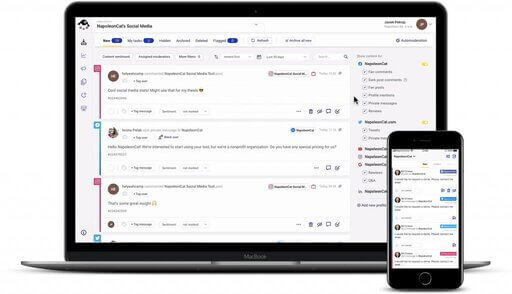
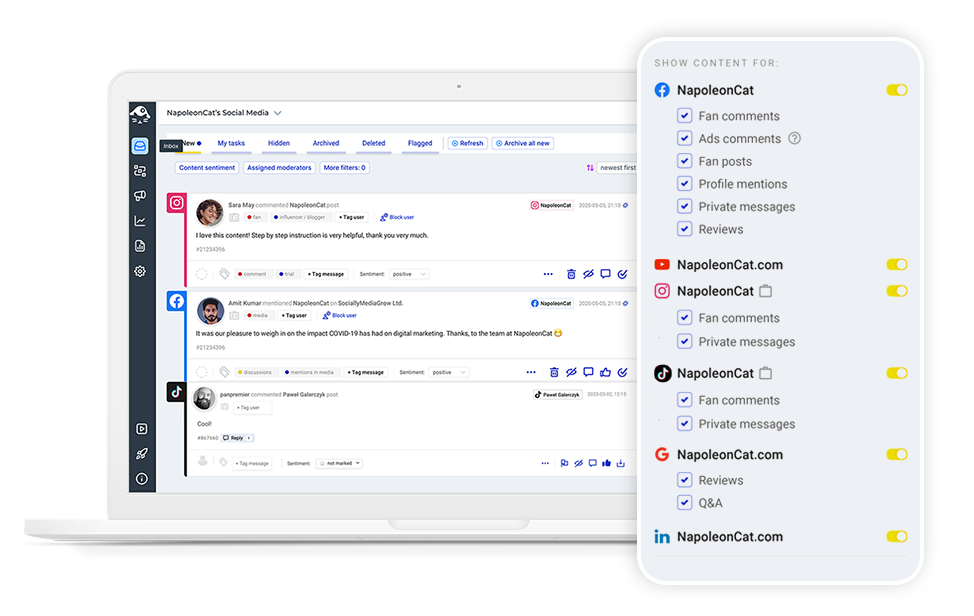
At the heart of LinkedIn moderation in NapoleonCat is the Social Inbox. It’s like an email inbox, but for all your LinkedIn interactions.
What Social Inbox does:
- Pulls all LinkedIn comments into one place
- Shows which comments are new, replied to, or assigned
- Lets you reply, hide, or escalate comments instantly – including assigning them to other team members
- Works across multiple profiles and Company Pages
No more opening individual posts or scrolling endlessly. And no more “Oops, I missed that comment from three days ago.” (LinkedIn algorithm won’t like that.)
Everything is organized and searchable. And you can act on it immediately. Which is exactly how professional conversations should be handled.
The best LinkedIn moderation tool
Use NapoleonCat to manage and automate all your comments, messages, and more – with an all-in-one social media tool that supports Facebook, Instagram, TikTok, LinkedIn, YouTube, Google My Business, and more.
How Social CRM enhances relationship building on LinkedIn
If the Social Inbox can be considered LinkedIn comment moderation basics, here’s where plain comment moderation becomes relationship management.
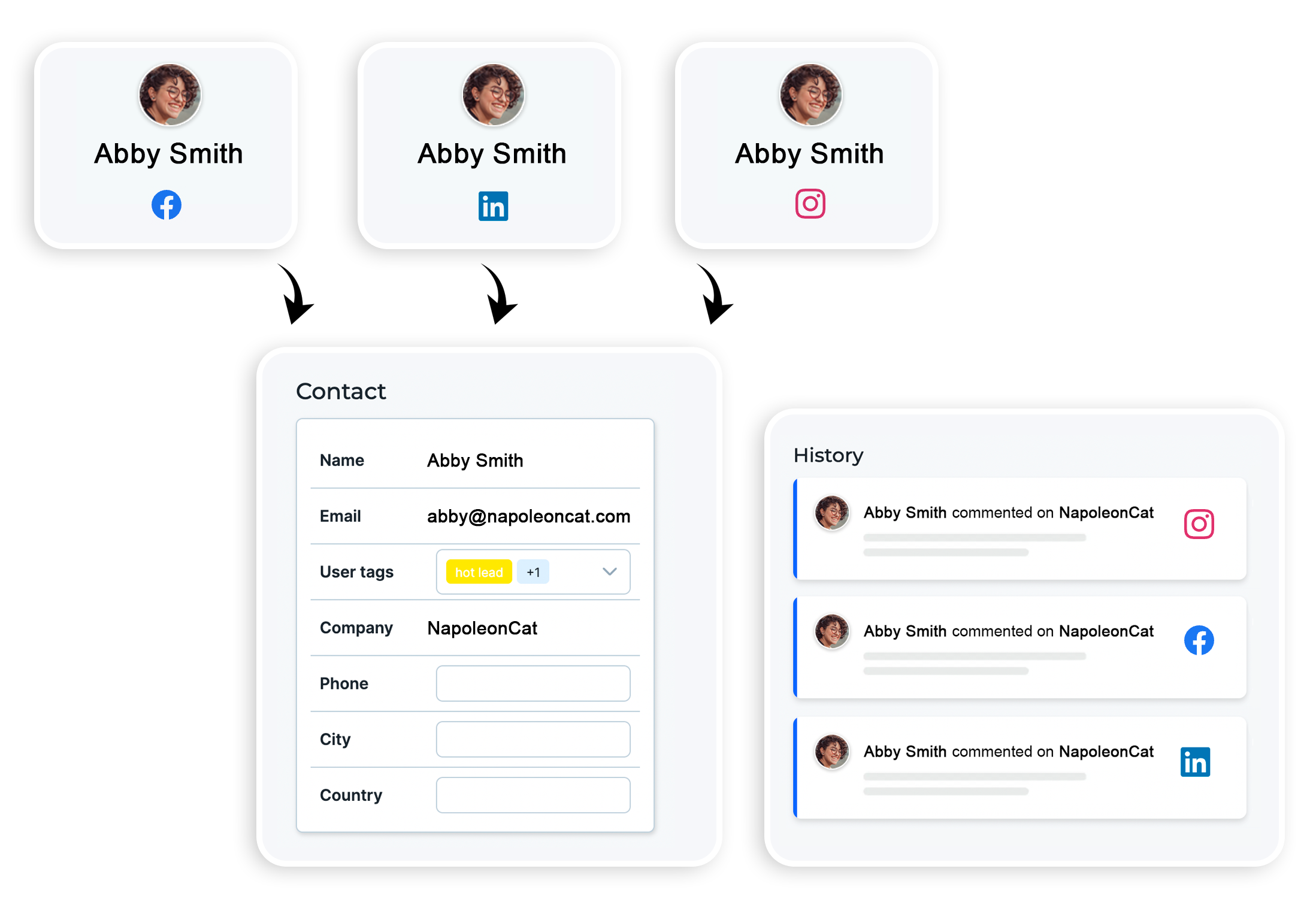
NapoleonCat’s Social CRM keeps a record of interactions with individual users, directly tied to their LinkedIn activity.
That means:
- You see the comment history for a given user (including on other social media platforms)
- You know whether they’ve engaged before
- You can personalize replies instead of starting from zero every time
- And you can even tag users helping create a fuller context (and also trigger automated actions based on the tag – more on that in a moment)
This is especially helpful for:
- Sales teams nurturing leads
- Employer branding teams engaging candidates
- Founders and thought leaders building long-term visibility and consistent presence on LinkedIn
Using Auto-moderation to reduce spam and irrelevant interactions on LinkedIn
For when your comment volumes rise, and/or you manage multiple LinkedIn profiles and Company Pages, you have Auto-moderation.
By setting up automated rules, you can automatically:
- Hide or flag spam comments
- Filter out repetitive promotional messages
- Block comments containing specific keywords or phrases – or coming from certain types of users (that’s where the tags in the Social CRM come in handy)
- Apply rules differently for personal profiles and Company Pages
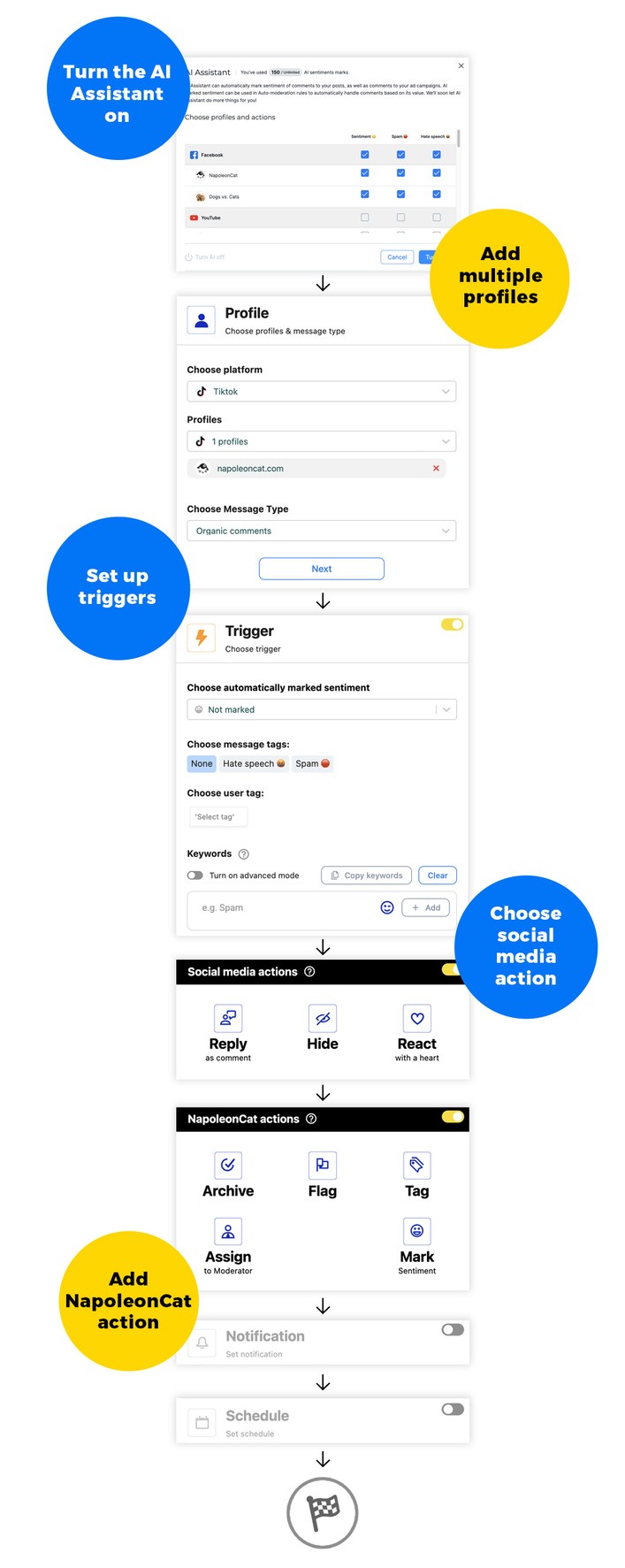
Setting up an Auto-moderation rule is really easy:
- Connect your LinkedIn profile(s) and Company Page(s) to NapoleonCat.
- Create a new Auto-moderation rule for LinkedIn and select the right profile or page
- Define what triggers the rule:
- Selected keywords
- AI-detected spam, hate speech, or negative sentiment
- A specific user tag
- Comments with links or images in them
- Or just any comment in general
- Define what happens as a result:
- Reply to a comment (create multiple versions of your response that the system will randomly rotate)
- Delete it
- Assign it to a team member if it needs someone to look at it and respond
- Add a tag (e.g., “lead”)
- Flag it for review
- And more
- Then set up a schedule or let the rule run 24/7 until you stop it.
And that’s literally it.
Leveraging the AI Assistant to detect spam, hate speech, and sentiment on LinkedIn
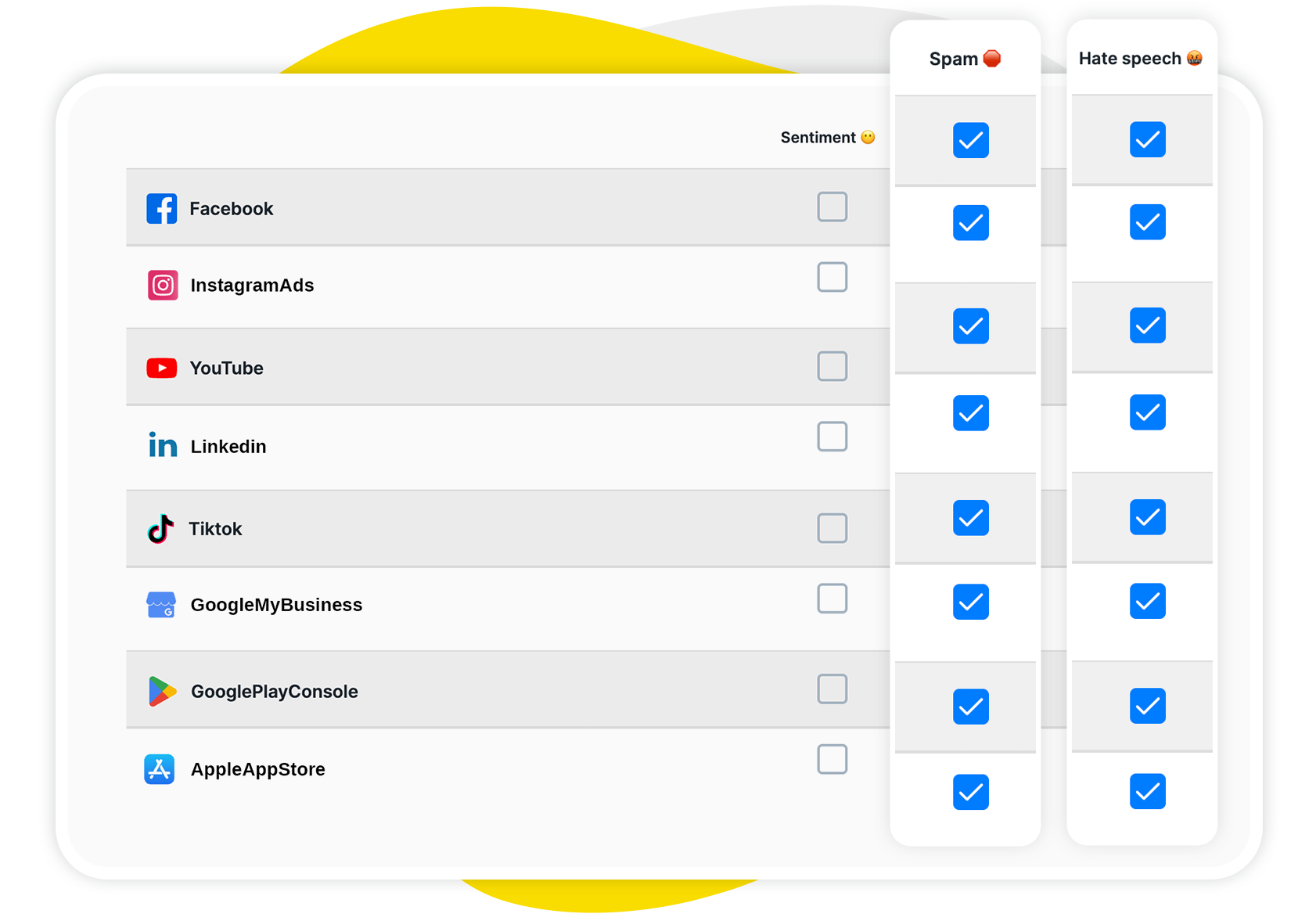
You can make LinkedIn moderation even easier by turning on NapoleonCat’s AI Assistant in the Social Inbox. It analyzes and tags spam patterns, hate speech, harmful language, and overall sentiment (positive, neutral, negative).
This is especially useful on LinkedIn, where problematic comments are often subtle, wrapped in professional language, and easy to miss at first glance.
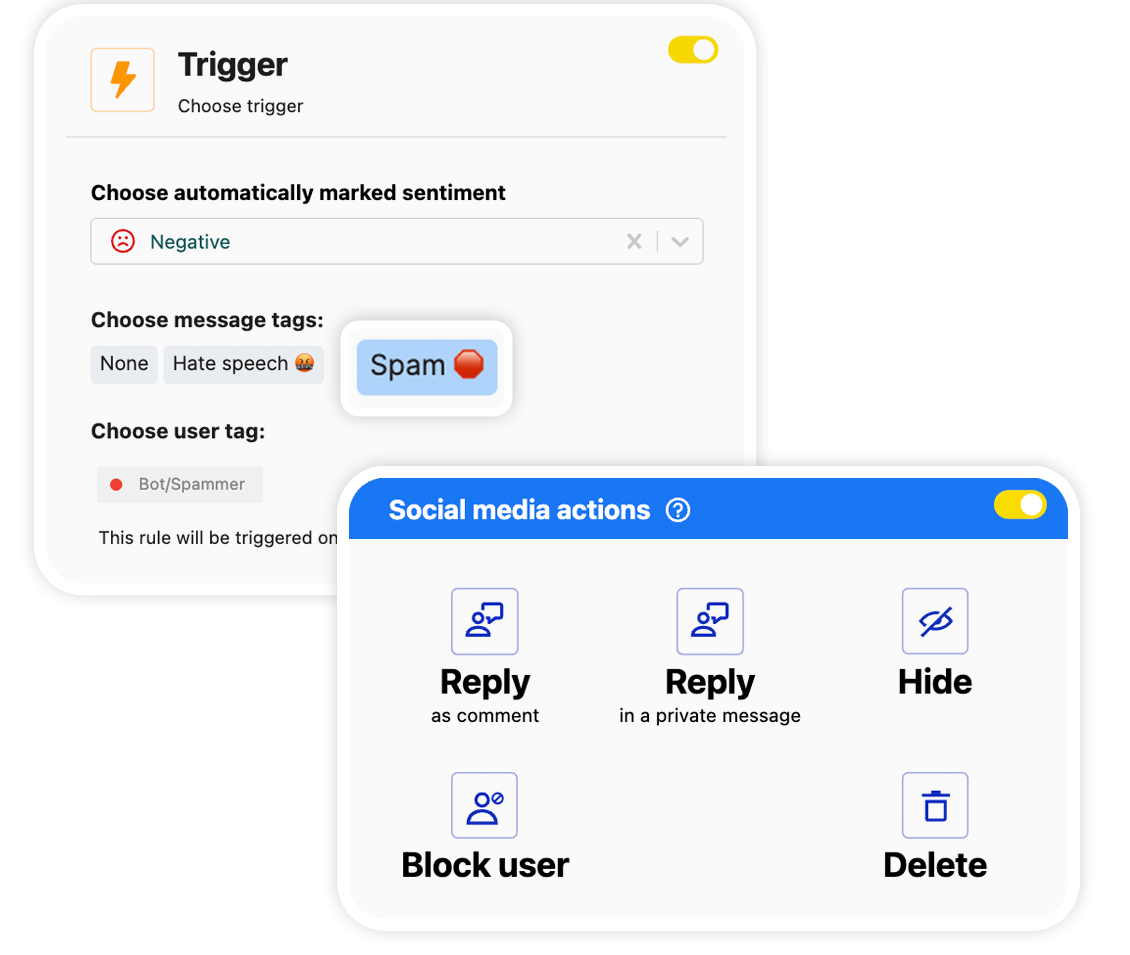
And what’s more, you can use the automated AI tags to trigger automated actions – for example, instantly removing spam whenever the AI assistant finds it in a comment.

Automatically Block Spam with AI Precision
Automatically hide or delete spam and hate comments on your posts and ads across all your social media platforms, powered by advanced AI.
Combining Social Inbox, Auto-moderation, and AI for maximum efficiency
Individually, each feature is really helpful. And together, they change how LinkedIn moderation feels entirely.
Here’s what the combo looks like in practice:
- AI Assistant highlights comments that need attention
- Social Inbox gives your team a clean, shared workspace to respond
- Auto-moderation filters out noise in the background before it becomes a problem
The result?
Faster response times with less manual work and higher engagement. And cleaner, more welcoming comment sections under your LinkedIn posts.
Exactly what a LinkedIn comment moderation tool should deliver.
How to set up LinkedIn comment moderation in NapoleonCat
Getting started with NapoleonCat’s LinkedIn comment moderation is refreshingly straightforward.
- Connect your LinkedIn profile or Company Page to NapoleonCat. If you manage more LinkedIn profiles for clients, you can create separate workspaces with different team members and access levels assigned to them.
- Your LinkedIn comments will start appearing in the Social Inbox automatically – no extra setup needed. (After some time, you’ll also be able to see your performance in the Analytics section).
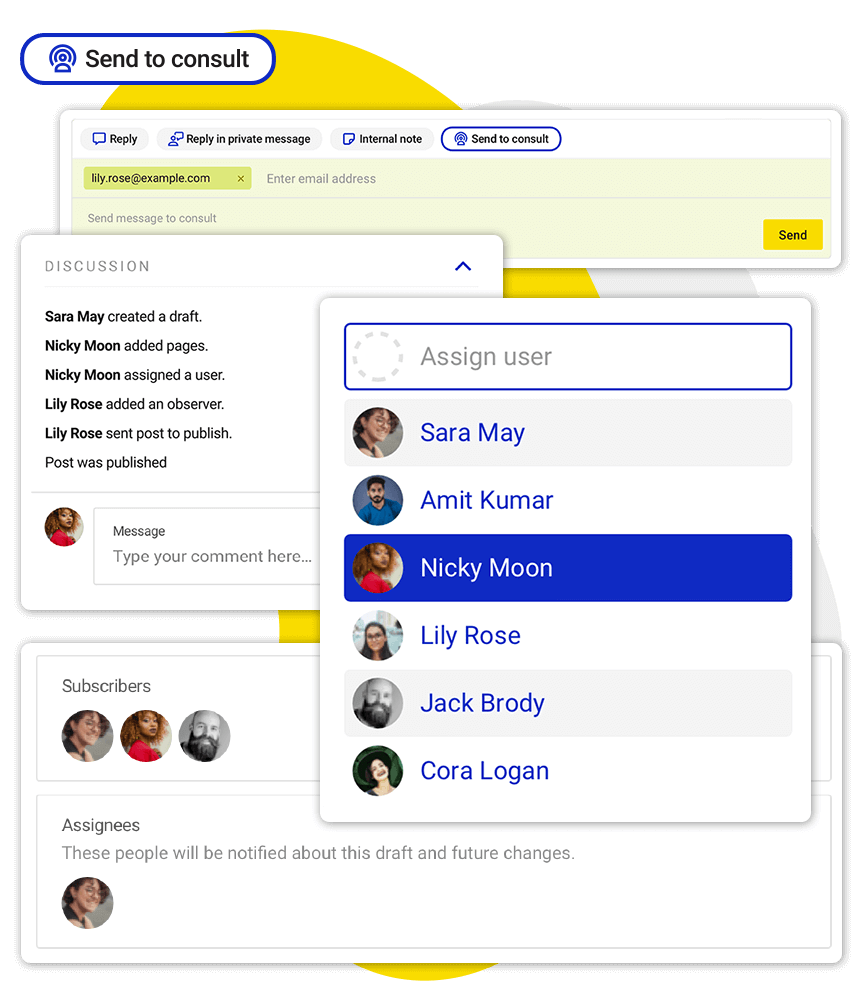
- From the Social Inbox, you can manually assign comments to team members in the workspace (or you can do it automatically using Auto-moderation). You can also add notes and send comments for consultation with people outside of your team.
- Turn on the AI Assistant in the Social Inbox to automatically detect spam, hate, and sentiment.
- Create Auto-moderation rules to support your team with manual LinkedIn comment moderation – for example, outside office hours or during busy sales periods. (Or 24/7 when it comes to spam removal – nobody really has to do it manually, ever.)
And that’s it. You’re officially moderating LinkedIn like a pro.
Best practices for staying on top of LinkedIn engagement
So you now have the right LinkedIn comment moderation tool (or at least, you’re about to have it ;)). To make the most of it, you also need a good strategy. Here are tips to follow:
- Respond quickly – LinkedIn favors active conversations, so the sooner you reply to a comment, the better for your engagement and reach (Auto-moderation can be a great help here).
- Respond always – even if it’s to say thank you. With the Social Inbox, it’s really easy.
- Don’t delete criticism – address it professionally (unless it’s plain trolling, then be my guest.)
- Don’t waste your moderators’ time on manual spam removal – do it on autopilot. (You can keep humans in the loop for nuance.)
- Review Auto-moderation rules regularly to make sure the scenarios covered are still relevant.
- And stay human. Yes, it’s LinkedIn, yes, we’re being professional, but professionals are still people, not robots.
Final thoughts
A LinkedIn comment can easily turn into a deal or a hire, so don’t underestimate efficient LinkedIn comment moderation. With social media moderation tools like NapoleonCat, you can do much more than manage comments – you manage relationships, conversations, and brand presence in one place.
And you do it without burning out or missing the comments that actually matter.
Which, honestly, is the whole point.
(And you can try how all this works completely for free for 14 days.)
The best LinkedIn moderation tool
Use NapoleonCat to manage and automate all your comments, messages, and more – with an all-in-one social media tool that supports Facebook, Instagram, TikTok, LinkedIn, YouTube, Google My Business, and more.
LinkedIn Comment Moderation Tool – FAQs
Let’s answer some of the most common questions regarding moderating comments on LinkedIn.
What does a LinkedIn comment moderation tool do?
A LinkedIn comment moderation tool helps you manage, respond to, organize, and moderate LinkedIn comments efficiently – often from a single dashboard.
Does LinkedIn offer native tools for moderating comments?
LinkedIn has very basic social media moderation options, but they’re limited and manual. They don’t scale well for active profiles or teams. (Also, their email notifications can be really out of sync.)
Can NapoleonCat manage comments on both personal LinkedIn profiles and Company Pages?
Yes. NapoleonCat supports moderation for both personal profiles and Company Pages.
How does Auto-moderation help reduce spam and unwanted interactions on LinkedIn?
Auto-moderation automatically hides, flags, or routes comments based on predefined rules, before they disrupt conversations. And when you add the AI spam and hate detection, this can all basically happen in the background, with you never having to worry about manually removing spam.
What types of comments can the AI Assistant detect on LinkedIn?
The AI Assistant can detect spam, hate speech, harmful language, and overall comment sentiment (positive, neutral, negative). And it’s pretty good at it, too.
Does Social CRM store interaction history from LinkedIn comments?
Yes. Social CRM keeps records of user interactions, helping you personalize future responses.
Can I manage multiple LinkedIn accounts and Pages in one place?
Absolutely. NapoleonCat is designed for multi-account and multi-page management.
Will Auto-moderation accidentally hide positive or valuable comments?
You control the rules. With proper setup and AI support, false positives are rare – and reversible.
How fast does NapoleonCat process LinkedIn comments?
Comments are processed in near real-time, so you can respond quickly and stay visible in conversations.
You may also like:
- How to Automatically Delete Spam on LinkedIn
- How to Automate Social Media Moderation
- Support Your Team With a Social Media Moderation Tool They Deserve
- The Best AI Comment Moderation Tool
- The Best Facebook Comment Moderation Tool
- Best Content Moderation Tools to Protect Your Brand Online
- The Best Facebook Moderation Tool for eCommerce
- The Best YouTube Comment Moderation Tool
- The Best Instagram Comment Moderation Tool
- The TikTok Comment Moderation Tool You Didn’t Know You Needed (Or Maybe You Did)