

Table of Contents
- Why you might want to disable comments on Facebook ads
- Can you disable comments on Facebook ads natively?
- The limitations of Meta’s native ad moderation options
- How to disable comments on Facebook ads using NapoleonCat
- Step-by-step: setting up Auto-moderation rules for ad comments
- Using AI Assistant to identify spam, hate speech, and sentiment
- Automating actions based on AI-detected comment types
- Other ways NapoleonCat’s Auto-moderation improves ad management
- Best practices for managing engagement on Facebook ads
- When you should (and shouldn’t) disable comments on ads
- Final thoughts
- How to disable comments on Facebook ads - FAQs
Wondering how to disable comments on Facebook Ads? Surprise – I won’t be discouraging you from doing it (though, I won’t encourage you, either.)
Instead, let’s look at when disabling comments actually makes sense, what Meta allows you to do, where the limitations are, and how to take back control with NapoleonCat’s Auto-moderation – including AI-assisted filtering for spam, hate speech, sentiment, and more.
- Why you might want to disable comments on Facebook ads
- Can you disable comments on Facebook ads natively?
- The limitations of Meta’s native ad moderation options
- How to disable comments on Facebook ads using NapoleonCat
- Step-by-step: setting up Auto-moderation rules for ad comments
- Using AI Assistant to identify spam, hate speech, and sentiment
- Automating actions based on AI-detected comment types
- Other ways NapoleonCat’s Auto-moderation improves ad management
- Best practices for managing engagement on Facebook ads
- When you should (and shouldn’t) disable comments on ads
- Final thoughts
- How to disable comments on Facebook ads – FAQs

Automatically Block Spam with AI Precision
Automatically remove spam and hate comments on your posts and ads, or block users — all powered by advanced AI moderation.
Why you might want to disable comments on Facebook ads
Contrary to what some people think, running Facebook ads rarely involves just delivering the right creative to the right audience – and then waiting for the conversions to roll in. You also need to manage everything that happens under those ads.
And if you’ve ever run an ad for longer than a day, you know how quickly the comment section can turn into a distraction. Trolls, spam, unrelated promotions, angry customers, bots, fake profiles, even political debates… All the things you didn’t sign up to moderate while trying to run a campaign. (And your ad agency/freelancer certainly didn’t, either.)
That’s usually the moment advertisers start wondering: How do I disable comments on Facebook ads – and get rid of the problem altogether? And if I can’t disable them entirely, can I at least tame them so I don’t spend half my day manually deleting nonsense?
The short answer: You can’t fully switch off comments on Facebook ads using Meta’s native tools, but there are ways to control them, hide them, filter them, or even automate moderation so you don’t have to chase after every new notification. So, let’s look at your options.
Can you disable comments on Facebook ads natively?
Let me get straight to the point: Meta does not give advertisers a simple “Disable comments” toggle for ads.
This is true across:
- Facebook News Feed ads
- Instagram ads
- Boosted posts
- Sponsored posts appearing across Meta placements
There is a comment control option available for organic Facebook posts where you can limit who can comment. But for paid campaigns, the option simply doesn’t exist.
Why? Because ads on Meta are built on engagement – and disabling comments wholesale would reduce the “social” part of social ads. Meta wants to show interactive ads, not billboard-style impressions. (And if you ask me, that makes total sense.)
That said, you’re not completely out of luck. You can use Meta’s native moderation features… though they’re pretty limited.
The limitations of Meta’s native ad moderation options
Meta provides a few tools meant to help advertisers keep their comment sections cleaner. But they’re far from perfect, and definitely not enough for businesses running multiple ads or managing high-volume campaigns.
Here’s what you can do natively:
1. Hide or delete comments manually
This is the fallback option for most advertisers. Is it effective? Yes. Is it scalable? Absolutely not.
2. Use keyword-blocking
You can set up a keyword list to automatically hide comments containing specific words or phrases. But:
- It requires guessing every possible variation.
- It doesn’t catch spam that doesn’t use those words.
- It doesn’t understand context or sentiment.
- It breaks easily when bots use creative spelling (and trust me, they will).
3. Limit commenters on organic posts
This is the closest Meta has to “disabling comments”, but it only applies to non-ad posts. Once the same post is used as an ad, the restriction no longer applies.
4. Turn off comments inside Facebook Groups (for admins)
Useful for community management. Not helpful for ads. (Obvs.) And we’re here to talk about how to disable comments on Facebook ads, after all, right?
In short: Meta gives you enough tools to do the bare minimum – but nothing that actually solves the problem of comment moderation on ads at scale.
Time to look for some other tools outside Meta. And you bet I have a suggestion.
How to disable comments on Facebook ads using NapoleonCat
NapoleonCat helps you hide or delete comments on ads, and it also gives you the ability to automate entire moderation workflows based on detection rules you define – or let the AI Assistant interpret for you.
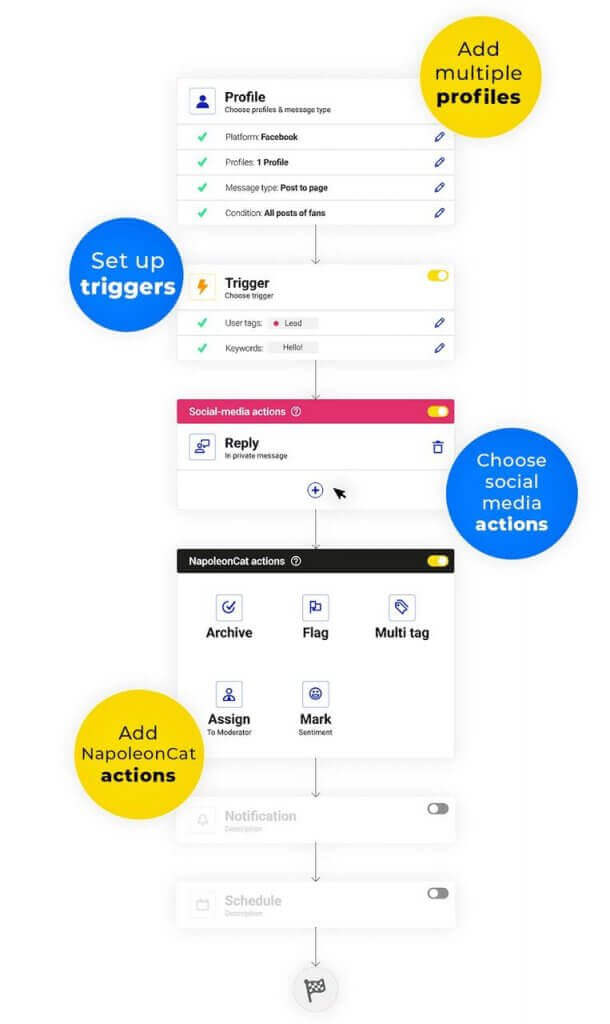
This means you can:
- Automatically hide inappropriate or off-topic comments
- Auto-delete obvious spam
- Limit visibility of negative comments
- Tag comments for follow-up
- Assign comments to team members
- Automatically respond to specific questions
- Vary your rules for different ads
- Apply rules across Facebook + Instagram ads simultaneously
And most importantly:
You can use Auto-moderation to effectively disable comments on ads by automatically hiding/deleting all incoming comments for those ads – without lifting a finger.
Step-by-step: setting up Auto-moderation rules for ad comments
Here’s how to configure rules to “disable” comments or manage them more effectively using NapoleonCat’s Auto-moderation.
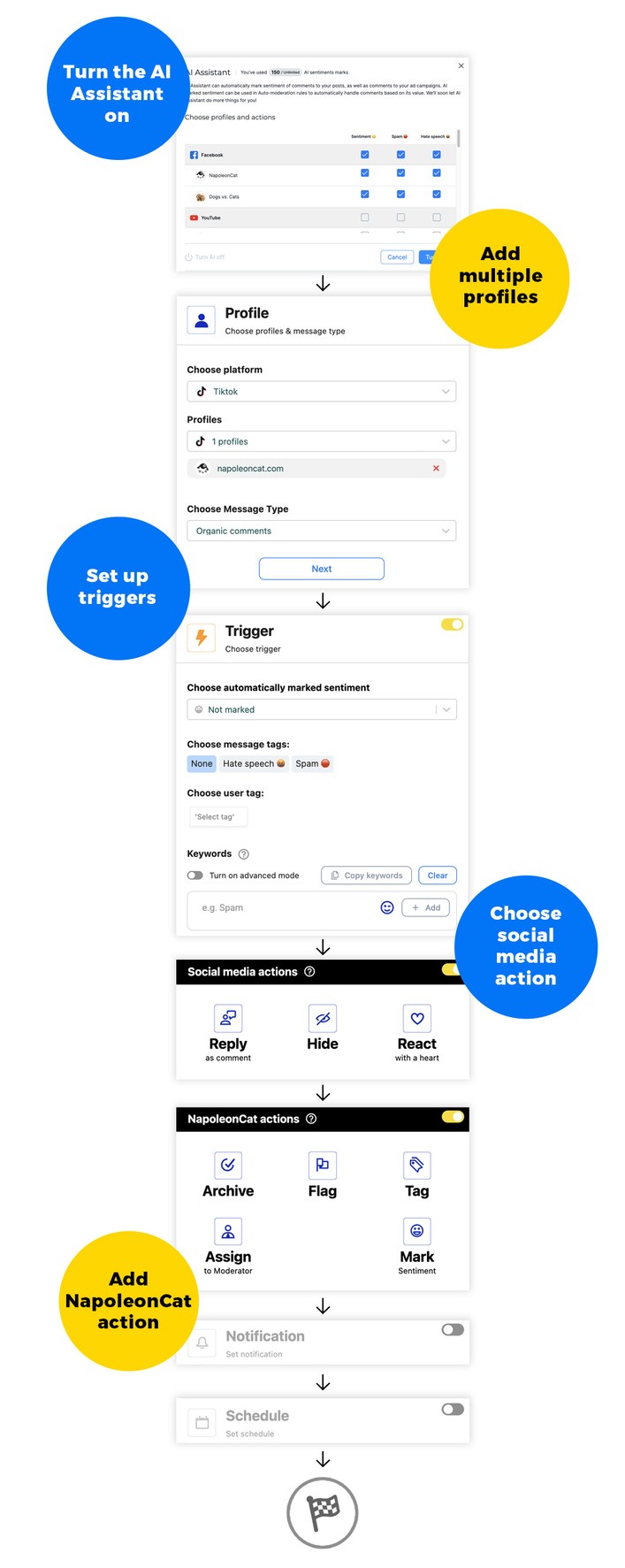
1. Go to Auto-moderation
Inside your NapoleonCat dashboard, open Auto-moderation and create a new rule.
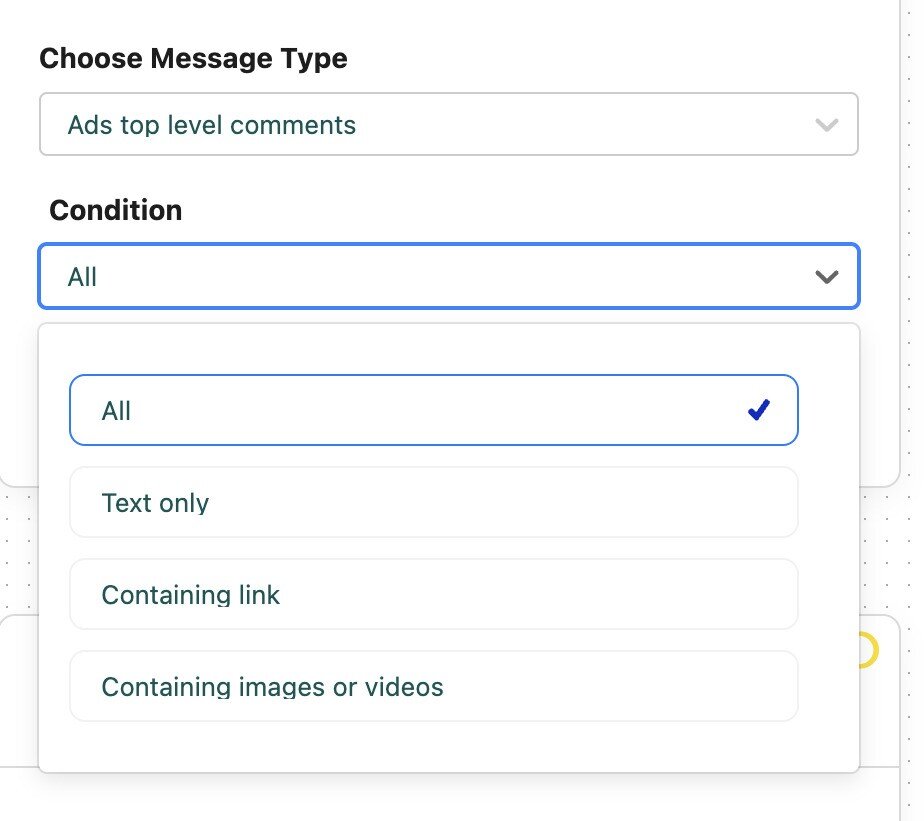
2. Choose your Facebook Page and comment type
Select your Facebook Page, then choose the type of ad comments the rule should apply to:

You can then further specify what’s in the comments – or leave “All” if you want to disable all Facebook ad comments.
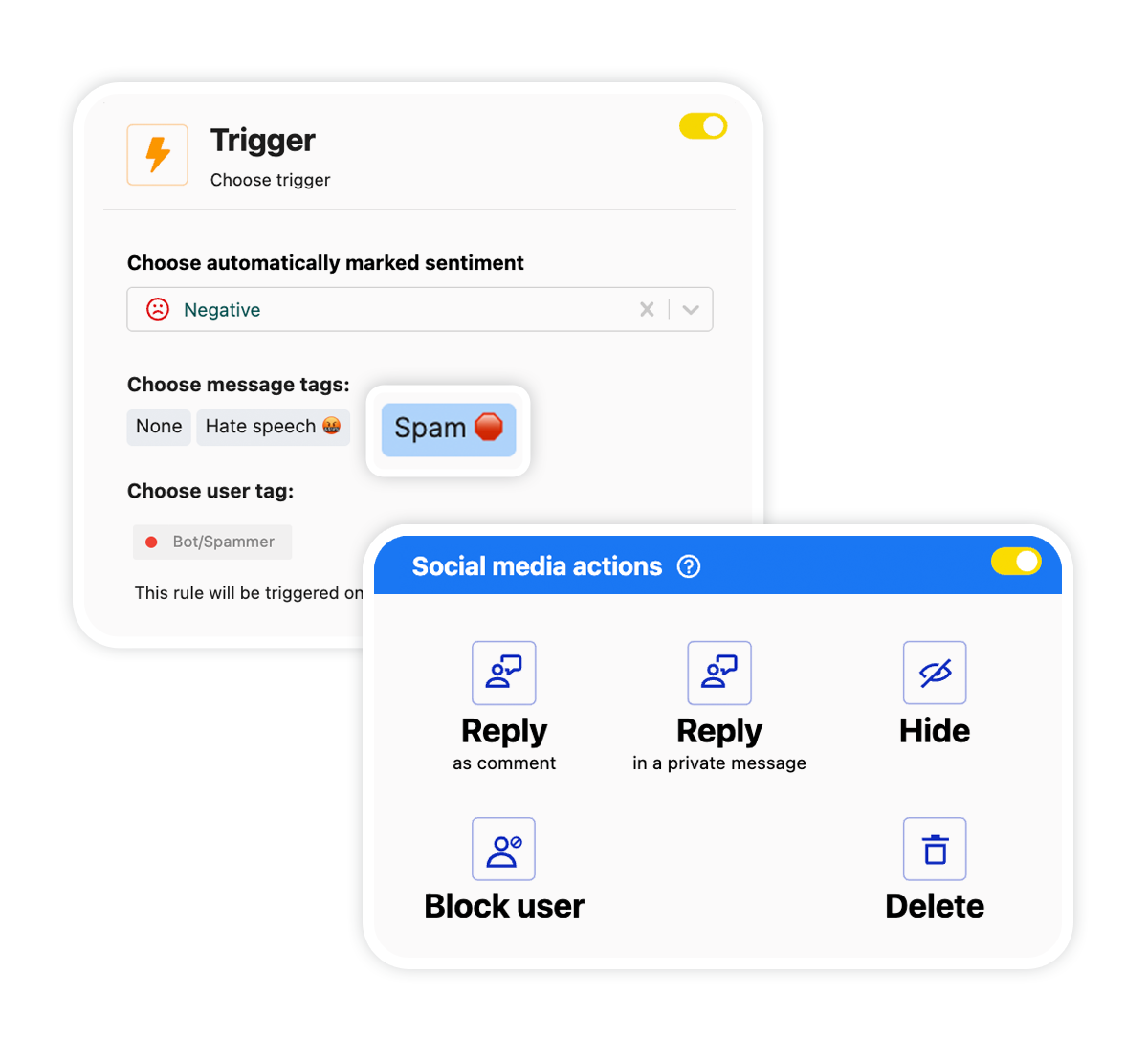
3. Define triggers
These might include:
- Specific keywords
- Comment sentiment
- Hate speech or spam
Or you can leave these empty so the rule applies to all comments (to fully disable comment visibility).
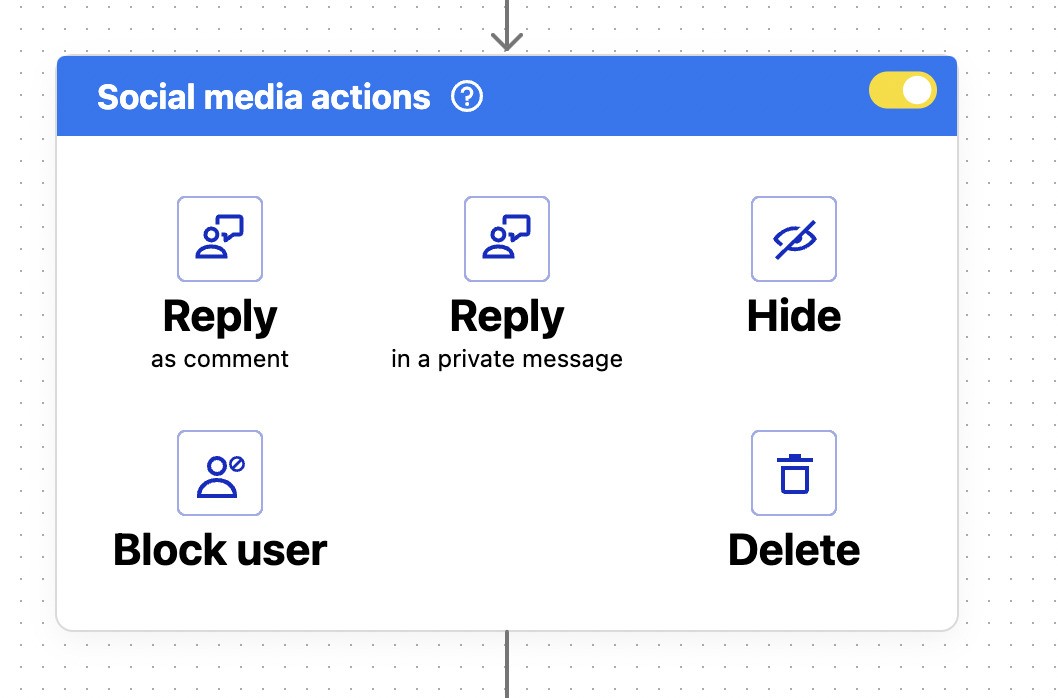
4. Choose actions
NapoleonCat can automatically:
- Hide comments
- Delete comments
- Reply privately
- Respond publicly
- And block the commenter
If your goal is to “disable” comments, choose Hide or Delete.
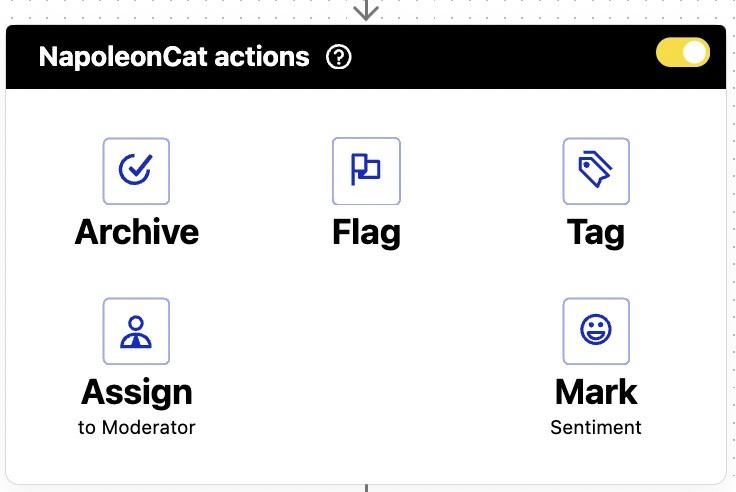
You can also add actions taking place in NapoleonCat, and not on Facebook:
- Send comments to a moderation team member
- Flag comments for review
- Tag a comment (e.g. as a sales inquiry)
- Mark sentiment
- Archive
5. Set up the schedule
You can have the rule running at certain hours, on certain days, for the duration of your ad campaign – or all the time (in that case, skip the schedule altogether).
6. Turn the rule on and let it run
NapoleonCat moderates in real time, so you no longer need to race to keep your ads clean.
Using AI Assistant to identify spam, hate speech, and sentiment
You noticed how you can use sentiment or spam and hate speech tags to trigger your automated comment moderation rules – these can be automatically detected and tagged by the AI Assistant in the Social Inbox.
NapoleonCat’s AI Assistant analyzes the meaning of a comment, not just the key words.
That means the system can automatically recognize:
- Spam
- Links to suspicious websites
- Aggressive or hateful language
- Harassment or personal attacks
- Negative sentiment
- Positive or neutral sentiment
- Complaints that need human attention
And you can use what it detects to trigger your automations.
Automating actions based on AI-detected comment types
With AI understanding each comment, you can fully automate moderation workflows. To do that for your Facebook ads and automatically remove spam from your comments:
- Turn on the AI Assistant in the Social Inbox for your Facebook account(s).
- Set up your Auto-moderation rule like above and choose the “spam” tag as your trigger.
- If you have specific keywords you want to remove, you can add those to the same rule, too.
Here are some other ideas:
- Delete + block a user when the AI Assistant detects spam
- Hide + flag for review for hate speech/harassment
- Hide + send to a moderator for follow-up for negative comments
Automatically Block Spam with AI Precision
Automatically remove spam and hate comments on your posts and ads, or block users — all powered by advanced AI moderation.
Other ways NapoleonCat’s Auto-moderation improves ad management
Auto-moderation is more than just hiding or deleting comments. It’s your full productivity and brand-protection system.
Unified inbox for all ads
See all comments from organic posts, ads, Instagram, and Messenger in one place, instead of hunting inside Ads Manager.

Team workflows
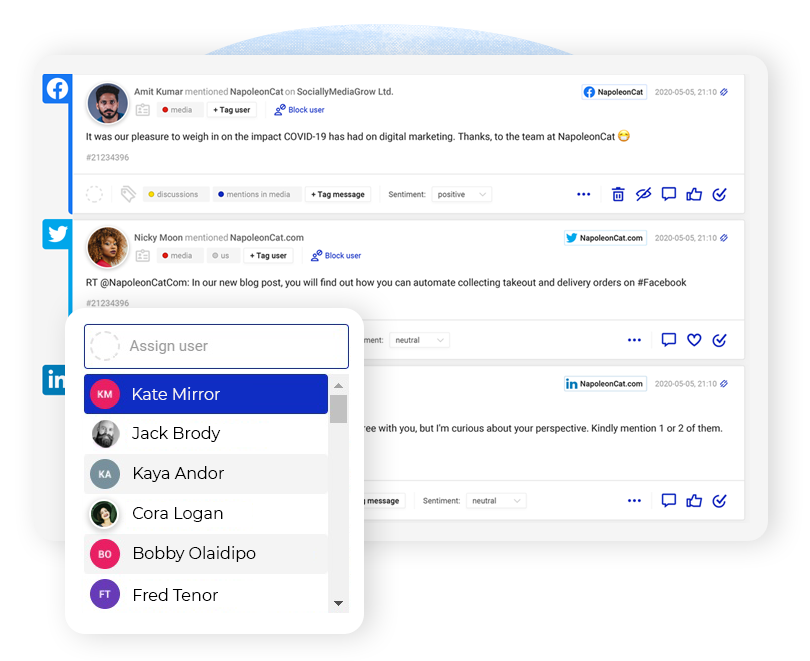
Automatically assign comments to specific team members, add internal notes, tag conversations, and keep everything organized.
Automatic replies
Don’t waste time answering the same “Is this available?” or “How much does shipping cost?” questions. With the right keywords, you can easily address recurring questions without engaging your moderation team each time.
Private replies
You can also automatically reply in a private message if a comment refers to sensitive details like order number or personal details. (And you can both reply in a comment and send a private message at the same time.)
Always-on protection (or only when you need it)
Whether you’re asleep, offline, or running a massive campaign with all moderators as busy as they can get, the system never stops moderating.
(For example, one of NapoleonCat’s agency clients turns on Auto-moderation during especially busy times – take a look at this case study.)
Best practices for managing engagement on Facebook ads
Disabling comments entirely makes sense in some cases – but it’s not always ideal. If you choose to keep comments open, here’s how to manage them effectively.
1. Respond quickly to legitimate questions
People often comment instead of clicking through to your landing page. Quick responses can directly increase your conversions, so keep that in mind. (And automate what is easy and makes sense for those instant replies.)
2. Hide instead of deleting if you don’t want to escalate
For some troll comments and hate speech, hiding might be a better idea, as the commenters won’t know nobody can see their comments. And this might prevent them from commenting even more (but with how trolls inherently are, I can’t promise you that.)
3. Don’t ignore negative feedback
Use sentiment detection to catch complaints early, and don’t just delete them. Instead, reroute them according to their contents and importance.
4. Keep your keyword list updated
Even with AI assistance, keyword blocking can help filter out obvious patterns. It’s especially important when you automate replies to keep them always relevant.
5. Set clear rules for your team
Everyone should know when to hide, delete, escalate, or respond. Make that a clear, transparent policy – and update it often to reflect the current social media reality.
6. Let automation handle repetitive work
Human attention should be used on nuanced comments – you don’t have to waste it on removing spam or dealing with trolls.
When you should (and shouldn’t) disable comments on ads
To quote on of the classics: “To disable or not to disable”.
Obviously joking, but that is sometimes the question. Because disabling (or auto-hiding) comments can be the right decision sometimes, and sometimes – not so much. Let me try to break it down.
Disable comments when:
- You’re running ads on sensitive topics
- You’re launching a brand-new product and want fewer distractions
- You’re dealing with a coordinated spam or troll attack (or your competition wants to do you dirty)
- You have limited resources to manage engagement
- The ad’s intent is purely transactional (though, that’s debatable)
- You want to protect your brand from predictable trolling
Keep comments open when:
- You rely on social proof
- You want user conversation to boost ad engagement (because it definitely can!)
- Your product benefits from Q&A in the comments
- You have a team to manage moderation (or solid Auto-moderation workflows in place)
- You want the comments to function as mini testimonials
So, as you see, there’s no one-size-fits-all answer. NapoleonCat lets you choose the right approach for your different Facebook ad campaigns, depending on what you need in a given moment.
Final thoughts
Disabling Facebook ad comments is a controversial topic (at least, for me.) But it might actually be a good idea sometimes (though I wouldn’t recommend it as a general rule for all your Facebook ads – comments are what makes Meta ads different from billboards or Google. And they might actually positively impact your ad engagement.)
The best approach? Do what makes the most sense for each ad campaign, at any given time. (So yes, it’s another way to say “It depends”. 😅)
And signing up to try NapoleonCat completely for free might give you more insight into what’s possible.
Automatically Block Spam with AI Precision
Automatically remove spam and hate comments on your posts and ads, or block users — all powered by advanced AI moderation.
How to disable comments on Facebook ads – FAQs
Let’s answer some of the most common questions about turning off comments on Facebook ads.
Can I turn off comments on my Facebook ad?
Not directly with Meta’s native tools. However, you can effectively disable comment visibility by using NapoleonCat to automatically hide all comments on selected ads. (Or also hide selected comments automatically, for example, spam.)
How do I disable comments on a Facebook listing?
For Marketplace listings, you can turn off comments in the listing settings. For ads, you need an external tool like NapoleonCat to hide or delete comments automatically.
Why is there no option to turn off comments on Facebook posts?
There is an option for organic posts (limiting who can comment), but Meta does not allow disabling comments on ads. Ads must remain open to engagement.
How do I turn off auto comments on Facebook?
If you’re receiving unwanted automated comments (typically spam bots), you can use filters or Auto-moderation in NapoleonCat to automatically hide or delete them based on content, sentiment, or AI detection.
You may also like:
- How to Stop Spam Comments on Facebook Ads – The Easy Way
- How to Turn Off Comments on Facebook Ads
- How to Manage Comments on Facebook Ads: A Complete Guide
- How to Monitor Facebook Ads Comments From One View
- The Best Facebook Ad Comments Automation Tool
- How to Turn off Comments on a Facebook Page
- How to Turn Off Comments on Instagram (for all posts at once)
- How to Turn on Comments on TikTok – A Quick Guide
- How to Stop Spam Comments on TikTok Ads – Expert Guide
- How to Stop Spam Comments on Instagram Ads – Expert Guide
- How to Stop Spam Comments on Instagram (for good)