Table of Contents
- What is a Facebook Messenger auto reply?
- How to set an auto reply on Facebook Messenger
- Key benefits of using auto-reply in Messenger
- Best practices for crafting your auto-reply messages
- Using Auto-moderation to enhance your Messenger workflows
- Managing your conversations: The role of the Inbox and unified communication
- Tracking performance: Using Inbox Activity Reports to measure success
- Integrating Messenger auto-reply with Social CRM – turning responses into relationships
- Common mistakes to avoid when using Messenger auto reply
- Conclusion: Boost responsiveness, brand friendliness, and measurable results
- Facebook Messenger Auto-Reply – FAQs
When someone sends your brand a message on Facebook, they usually expect a quick response. Like… “I just hit send, and now I’m waiting at my keyboard” quick. Customer service, right?
After all, it’s not an email. But you can’t be glued to Messenger 24/7. You’ve got lunch breaks, team meetings, actual work, maybe even a social life (allegedly).
Let me show you how to set up a Facebook Messenger auto reply tool and use it strategically with NapoleonCat.
- What is a Facebook Messenger auto reply?
- How to set an auto reply on Facebook Messenger
- Key benefits of using auto-reply in Messenger
- Best practices for crafting your auto-reply messages
- Using Auto-moderation to enhance your Messenger workflows
- Managing your conversations: The role of the Inbox and unified communication
- Tracking performance: Using Inbox Activity Reports to measure success
- Integrating Messenger auto-reply with Social CRM – turning responses into relationships
- Common mistakes to avoid when using Messenger auto reply
- Conclusion: Boost responsiveness, brand friendliness, and measurable results
- Facebook Messenger Auto-Reply – FAQs

Facebook Messenger Auto Reply
Set up smart auto-replies for your organic posts and ads on Instagram, Facebook, and Messenger. Automatically hide or delete spam and hate speech – with an all-in-one social media tool.
What is a Facebook Messenger auto reply?
A Facebook Messenger auto reply is an automated message sent to customers when they message your Facebook Page.
You can use auto replies to:
- Greet customers the moment they message you
- Let them know your typical response time
- Share helpful info upfront
- Send away messages outside business hours
- Acknowledge common questions
- Route inquiries to the right team or channels
Meta provides basic auto-reply features in Facebook Page settings, while tools like NapoleonCat take your automation to a whole new level, helping you build rule-based workflows, respond to common questions automatically, escalate conversations, and track performance.
How to set an auto reply on Facebook Messenger
Meta gives you native tools for setting up Facebook Messenger auto replies. Here’s how to configure the basics:
- Go to Facebook Page Settings/Professional dashboard on your Facebook page.
- Select Inbox or Meta Business Suite → Inbox (depending on your layout)
- Navigate to Automations
- Choose the type of auto-reply you want (depending on what you have available):
- Instant Reply (sent immediately after someone messages you)
- Away Message
- Frequently Asked Questions
- Contact info request
- Instant Reply (sent immediately after someone messages you)
- Customize the text and save your settings
Your Facebook Messenger auto reply now goes out automatically, no manual action required.

There’s a “but” though:
Native auto replies are helpful, but limited. If you want advanced routing, keyword-based responses, team workflows, or integrated moderation across Facebook and Instagram, you’ll want NapoleonCat’s Auto-moderation.
More on that in a minute. (Or two.)
Key benefits of using auto-reply in Messenger
Why bother with Messenger auto replies at all? Well, there are plenty of reasons:
- Faster response times. Instant acknowledgment = happier customers. Even if you can’t solve the issue right away, people appreciate knowing you received their message.
- Fewer repetitive replies. “How late are you open?”, “Where’s my order?”, “Do you ship internationally?”
Let auto-replies answer these for you while you focus on tougher questions. And you know what else that leads to? Higher productivity!
- Better customer experience. Responsiveness builds trust. And trust leads to purchases, loyalty, and fewer angry “???” messages.
- Organized communication. Auto-replies can filter conversations and send customers to the right department or resource faster. It’s also easier to keep to a consistent brand tone. I mean, overall, it’s just easier.

Automatically Block Spam with AI Precision
Automatically hide or delete spam and hate comments on your posts and ads across all your social media profiles, powered by advanced AI.
Best practices for crafting your auto-reply messages
A good auto-reply message is helpful, human, and to the point. A bad one sounds like a robot from 1997. 🤖
Here’s how to land on the good side:
- Keep it friendly. Use a warm, conversational tone. Your customer just reached out – say hello back. Automation doesn’t equal robotic communication. (I mean, it doesn’t have to.)
For example:
“Hey there! 👋 Thanks for messaging us. We’re on it.”
See?
- Tell people when they can expect a real human response – even (or especially) when you can’t reply instantly.
For example:
“We usually reply within a few hours.”
- Provide helpful information. If people frequently ask the same questions, include answers or links.
- Keep it nice and short. Helpful but not overwhelming.
- Stay on brand. If your brand is fun, be fun. If it’s professional, stay professional. Makes sense, right? 🙂
- Give people a way to reach you through other channels if needed.
Using Auto-moderation to enhance your Messenger workflows
Meta’s native auto replies are fine for the basics. But let me show you what you can do with NapoleonCat’s Facebook management tools for business.
With Auto-moderation, you can automate replies based on:
- Specific keywords or phrases
- Sentiment
- Time of day
- Common service questions
- Business hours
- And even type of customer (if they’re tagged in the Social CRM in NapoleonCat).
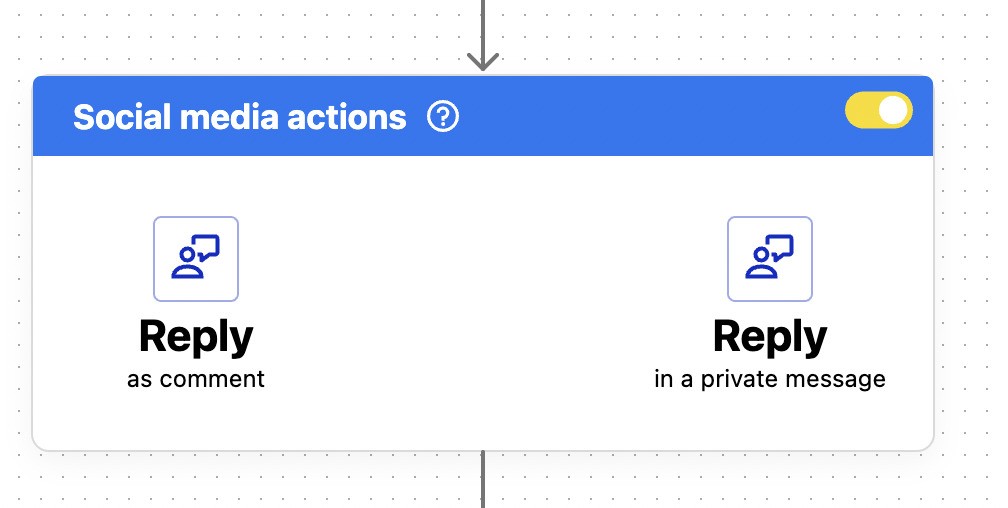
And you can trigger actions like:
- Sending a tailored auto-reply
- Tagging the conversation in NapoleonCat
- Assigning it to a specific moderation team member
- Blocking a user to prevent spammy messages
Example use cases
“Where is my order?” messages
Auto-moderation can detect phrases like “order status,” “tracking,” or “package.”
And send an auto-response:
“Need help tracking your order? You can check your shipping status here: [link]. If you still need assistance, our team will get back to you soon!”
Outside business hours
Send helpful away messages only when you’re away and tag customer inquiries for next-day follow-up.
Support triage
If people message about troubleshooting, the rule can assign them directly to your support team.
💬 Lead routing
Auto-moderation can detect sales inquiries and flag them for your sales team within the Social Inbox.
Managing your conversations: The role of the Inbox and unified communication
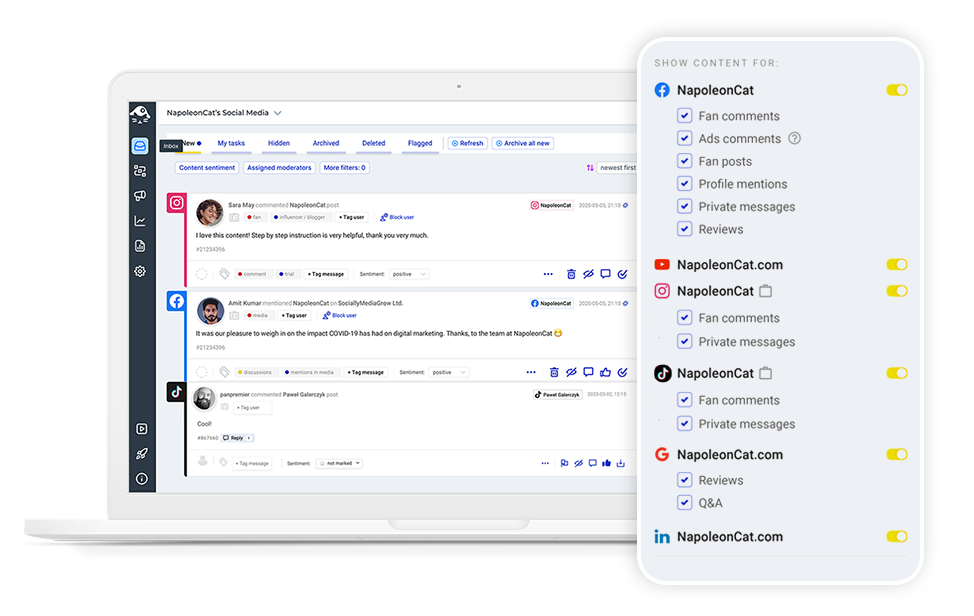
Speaking of the Social Inbox – Messenger is only one of the many channels where customers reach out. If you’re juggling comments, DMs, reviews, and messages across Facebook, Instagram, and Google, it’s easy to lose track.
NapoleonCat’s Social Inbox solves that with a unified dashboard where all your conversations live in one place. You can:
- See messages and comments from all platforms in a single feed
- Assign conversations to teammates
- Add internal notes
- Use saved replies
- Access customer history
- Filter by tags, channel, sentiment
- Collaborate across departments
- Respond to Messenger conversations directly
Combine this with Auto-moderation, and you’ve got a superpowered customer support hub.
Tracking performance: Using Inbox Activity Reports to measure success
How do you know if your Messenger auto replies are actually helping?
NapoleonCat’s Inbox Activity Reports show you response times, number of moderated conversations, moderator reactions, inbox tags, sentiment, and more metrics related to message moderation.
Here’s just a peak into what that might look like:

Tracking and reporting makes it easier to refine your auto replies, spot bottlenecks, and justify your team’s workload.
Integrating Messenger auto-reply with Social CRM – turning responses into relationships
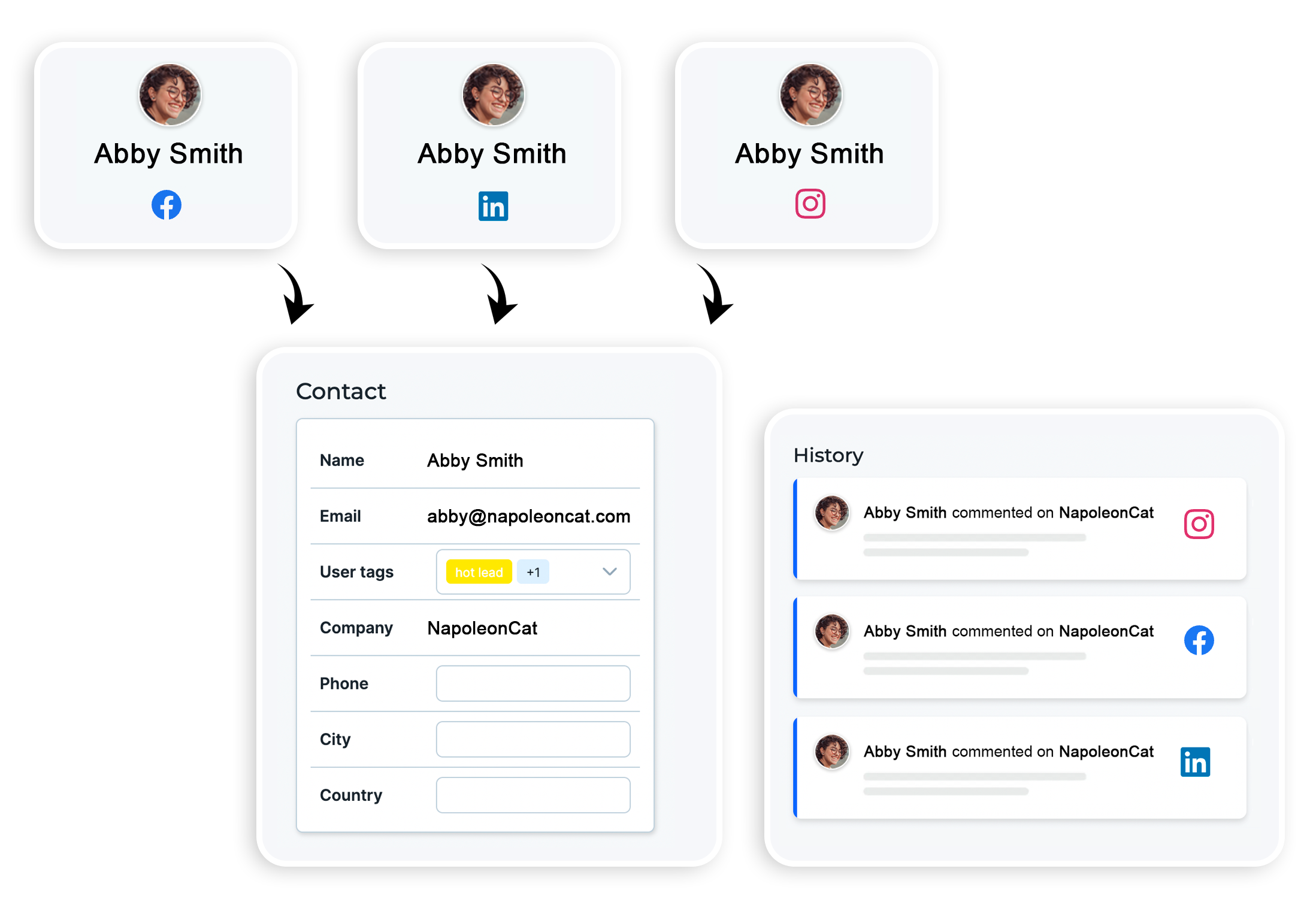
Every Messenger conversation is an opportunity to learn more about a customer and build a relationship. But if you manage those conversations right, you can also track information to segment audiences, track purchase behavior, identify loyal customers, or route VIPs to priority support. All based on conversation history.
NapoleonCat’s Social CRM lets you save customer info, track conversation history, and add tags – for example, “customer”, “warm lead”, or “top fan”.
You can then automate replies based on the tag and give your moderation team much more context for replying, no matter who’s currently on it – everyone has access to all the information.
Common mistakes to avoid when using Messenger auto reply
Even good automation can go bad, no matter the channel. Here are some things you should definitely NOT do:
- Don’t sound like a robot. Use natural language. No one wants to talk to HAL 9000. (Well, I know y’all are keen to talk to ChatGPT, but the sentiment suddenly changes when it’s about customer service. And even ChatGPT can not be robotic a lot of the time.)
- Prevent sending multiple overlapping auto replies. Make sure your rules don’t contradict each other or trigger at the same time. It takes some thorough planning first to figure out all the Auto-moderation scenarios, so they make sense and stay relevant.
So, don’t skip that step.
- Don’t use the same reply for every situation. “Thanks for your message!” doesn’t cut it when someone is asking about a missing package. NapoleonCat’s Auto-moderation also lets you create multiple (unlimited, actually) response variants for the same situation, so you don’t keep sending the same thing to the same people (the system randomly rotates replies for an individual rule).
- Don’t forget to update your messages when things change – like your hours, location, links, etc. Always make sure to update your auto replies.
- And last but not least, don’t forget to continuously monitor the Inbox. Auto-replies help a lot, but humans still need to follow up on some (if not most) conversations.
Conclusion: Boost responsiveness, brand friendliness, and measurable results
A well-crafted Facebook Messenger auto reply will help you communicate faster, stay available 24/7 – and not lose your mind. That’s because it’s a tool to support customers more effectively and improve team efficiency at the cost of setting up Auto-moderation workflows (which is really easy, let me tell you).
Oh, and a single monthly subscription – but one that gets you Auto-moderation and Social Inbox, and reporting, and analytics, and content publishing, and even an AI Assistant to help you target and eliminate spam and hate speech more effectively.
Oh, and Social CRM and team collaboration tools on top!
And you can even try it completely for free first.
Facebook Messenger Auto Reply
Set up smart auto-replies for your organic posts and ads on Instagram, Facebook, and Messenger. Automatically hide or delete spam and hate speech – with an all-in-one social media tool.
Facebook Messenger Auto-Reply – FAQs
Let’s answer some of the most common questions regarding auto-replies on Messenger.
How to set an auto reply in Facebook Page Messenger?
Go to Meta Business Suite → Inbox → Automated Responses. Select Instant Reply, customize your message, and save.
How to change auto reply on Facebook Messenger?
Go back to Automated Responses, select the reply you want to edit, and update the text. Hit Save, and the new version goes live instantly.
How to turn off auto reply in Facebook Messenger?
In Automated Responses, toggle off the auto reply type you previously enabled (e.g., Instant Replies, Away Messages).
How to edit Facebook Messenger auto reply?
Navigate to: Inbox → Automated Responses → Instant Reply (or other message type). Edit the message and save your changes.
What’s the difference between instant reply and away message on Messenger?
- Instant Reply: Sent automatically to everyone who messages you, anytime.
- Away Message: Only sent when your Page status is marked as “Away” or outside your business hours (that you set on your Facebook Page).
How do I send auto replies for common customer questions on Messenger?
Meta offers FAQs, but for advanced keyword-based replies, message routing, personalized responses, and rule-based workflows, use NapoleonCat’s Auto-moderation.
What tools can I use to set up advanced auto replies on Facebook Messenger?
For advanced automation, rules, personalization, workflow routing, and cross-platform support, we recommend NapoleonCat’s Auto-moderation. It’s based on easy-to-set-up rules and includes AI-supported features and flexible scenarios, with up to 6 different triggers combined in one rule.
How do I set up an auto reply when my business is offline on Facebook?
Use Away Messages in Automated Responses (Automations). Set your business hours, write a helpful after-hours reply, and Messenger sends it automatically when you’re offline. Set up your business hours on Facebook, so it knows when to send the message.
Alternatively, set up an Auto-moderation rule in NapoleonCat and adjust the schedule so that it gets sent in a desired time window.
You may also like:
- Best Auto Commenter for Social Media: Full Guide
- Best Facebook Auto Commenter – a Guide
- Best TikTok Auto Commenter – Expert Guide
- Best Instagram Auto Commenter
- Best YouTube Auto Commenter – Expert Guide
- How to Use Automated Customer Service on Social Media
- How to Automate Social Media Replies (And When You Should)
- Instagram Auto-Comments: When and How Should You Use Them?
- How to Set Up a Smart Auto-Reply in Instagram Comments
- How to Set Up a Smart TikTok Comments Auto-Reply
- How to Set Up Auto-Reply in Facebook Comments
- How to Set Up Auto-Reply in YouTube Comments